Author

Hadley Eliot

Browsing

Table of Contents

Last Updated: October 20, 2026

Is Colocation Worth It for Small Business? The Short Answer

Colocation is worth it for a small business when the cost of power, cooling, bandwidth, and staff time to run servers in-house exceeds the monthly rack fee, and when downtime directly costs revenue.

The honest answer most providers skip: colocation rarely wins on sticker price alone.

Below, we’ll show you how to run that comparison, including a total cost of ownership worksheet and a provider checklist for sales calls.

What Colocation Is and How It Works

Colocation is a hosting arrangement where you own your servers and rent space for them in a third-party data center that supplies power, cooling, bandwidth, physical security, and connectivity.

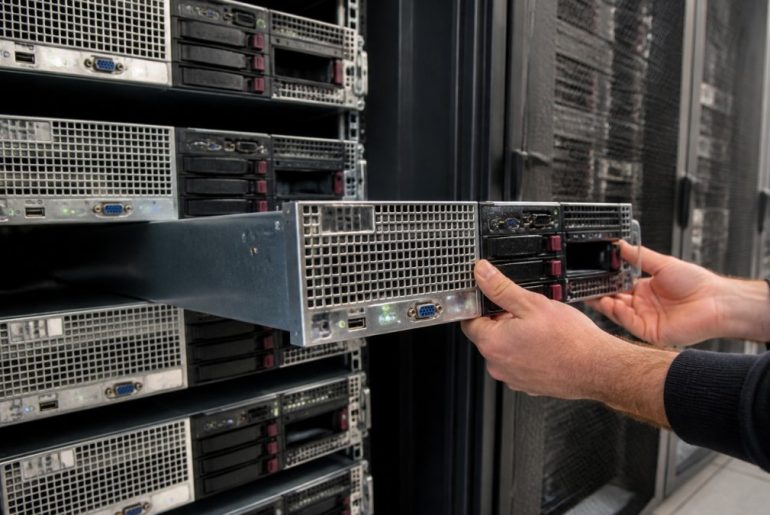
A technician in a server room sliding a rack-mounted server into a colocation rack, with rows of blinking equipment and cool overhead lighting in the background

What You Bring and What the Facility Provides

The division of labor is usually clean, and it’s the first thing to confirm in writing:

  • You provide: the server hardware, the operating system, your applications, your data, and your configuration decisions.
  • The facility provides: rack space, power circuits, cooling, physical access control, network uplinks, and remote hands for physical tasks.
  • The gray zone: hardware maintenance, spare parts, and who pays for a failed drive. Get this in the contract before you sign.
Pro Tip
Ask specifically whether remote hands are billed hourly or included in the monthly fee, and what the response window is. A facility that includes two hours of remote hands monthly can save you a flight or a four-hour drive when a drive fails.

Small Business Colocation Costs: What You Actually Pay For

Small business colocation costs break into five recurring line items: rack space (often billed per unit or per partial rack), power (billed by amperage or kilowatt-hour), bandwidth (by commit and burst), cross-connects, and support hours. Pricing depends on your power density, location, and contract length, so ask each provider for a quote against your actual server list.

The line items that matter most:

Cost Line What Drives It What to Ask
Rack space Units or partial/full rack Is partial rack available?
Power Amps or kWh, plus redundancy tier Is A+B power included?
Bandwidth Committed rate and burst What’s the overage rate?
Cross-connects Per connection, per carrier Is the first one free?
Remote hands Hourly or included hours What’s the response window?

Build a Total Cost of Ownership Model, Not a Sticker Comparison

Most small businesses compare the colocation rack fee to a cloud invoice and stop there, ignoring everything they already pay to run servers in-house. A useful TCO model puts four options side by side over a three-year horizon: on-premises, colocation, cloud, and a dedicated server.

For each option, capture these cost buckets:

  • Space and environment: rent or opportunity cost of the server room, dedicated cooling (a small closet can add meaningful load to office HVAC), and any electrical work.
  • Power: the incremental electricity for servers plus cooling, measured at your utility’s commercial rate.
  • Bandwidth and connectivity: business internet, redundant circuits if you have them, and static IPs.
Pro Tip
Build the model in a spreadsheet with one column per option and one row per cost bucket, using your actual server count and power draw. Once you add labor and cooling to the on-premises column, the comparison usually changes.

Where the Break-Even Usually Lands

There is no universal break-even point, but a few patterns hold:

  • Very small footprints (one or two low-power servers): on-premises or a dedicated server is often cheaper, because colocation’s fixed costs, cross-connects, minimum commitments, remote hands retainers, don’t shrink below a floor.
  • Mid-size footprints (a partial rack or more, steady load): colocation starts to win once your in-house labor and cooling costs are real and recurring, and once downtime has a measurable revenue cost.
  • Growth trajectories: if you expect to add servers steadily, colocation’s incremental cost per added server is usually lower than standing up more capacity in an office.

Break-even is less about server count and more about three variables: skilled IT time burned on facilities work, actual power and cooling costs, and the cost of an hour of downtime.

The Downtime Math Nobody Puts in the Proposal

Colocation’s case often rests on avoided downtime, so quantify it: estimate revenue lost per hour of outage, add recovery labor, and multiply by your historical outage frequency. If one failed power supply or summer cooling failure would cost more than a year of rack fees, redundancy pays for itself. If your workload tolerates hours of downtime, that argument weakens and price should drive the decision.

The most common surprise is power overage. A quote built around a low amperage allowance looks cheap until you add a second server and trip into a higher billing tier. Ask for the per-amp overage rate in writing before you sign, and model your power draw at full planned capacity, not today’s load.
::: Accurate forecasting of these recurring costs remains essential when evaluating various IT infrastructure options to ensure your long-term operational budget stays predictable.

Hidden Costs Most Quotes Leave Out

The number on the proposal is rarely the number on the invoice. Watch for setup fees, power overage charges when you add a server, per-carrier cross-connect fees, and after-hours escorted access charges. Hardware shipping and racking labor can land as one-time costs. Budget too for the time your team still spends on hardware lifecycle, patching, and monitoring, colocation removes the building, not the server administration.

Colocation vs Cloud for Small Business

Cloud wins on speed to deploy and elastic scale; colocation wins on predictable monthly cost and full hardware control. For a small business with steady, known workloads, colocation typically produces a flatter bill. For spiky or experimental workloads, cloud’s flexibility usually justifies the premium.

The trade-off in practice:

Build & Price ?

  • Choose cloud when your demand swings wildly, you need global regions on day one, or you have no appetite for hardware lifecycle management.
  • Choose colocation when your workload is steady, your hardware is already paid for or leased, and you want a fixed monthly number your finance team can forecast.
  • Choose hybrid when you want the steady-state database on your own hardware and burst capacity in the cloud.

Colocation vs Dedicated Server for Small Business

A dedicated server is rented hardware in a provider’s facility; colocation is your hardware in a provider’s facility. Dedicated server hosting removes capital expenditure and hardware maintenance entirely. Colocation keeps full control and can lower long-run costs if you already own the equipment.

Factor Colocation Dedicated Server
Hardware ownership You Provider
Upfront cost Higher (capital) Lower (monthly)
Control Full, including root and firmware Full root, provider-owned chassis
Maintenance Yours or billed remote hands Provider’s responsibility
Best for Owned hardware, steady workloads Teams avoiding capital spend

If your servers are aging and you’d rather not carry the refresh risk, a dedicated server is the cleaner path.

Uptime, Power, Cooling, and the Support You Get

Uptime is where colocation earns its fee. Redundant power, redundant cooling, and multiple carrier paths deliver availability a small business cannot practically replicate in an office closet, and the service-level agreement makes those promises enforceable.

What to verify:

  • Power: uninterruptible power supply coverage plus generator backup, tested on a published schedule.
  • Cooling: redundant cooling units and monitored temperature and humidity.
  • Network: multiple carrier options and diverse fiber paths so one cut doesn’t take you offline.

Redundancy and Disaster Recovery

Redundancy protects uptime; disaster recovery protects data. Colocation facilities typically offer geographic separation from your office, so a flood or fire at your building doesn’t touch your servers. Pair that with an offsite backup target and a documented recovery plan.

Colocation solves the facility problem, not the backup problem. Redundant power keeps your server running; it does nothing for a deleted database. Budget for both.

Colocation Provider Checklist for Small Businesses

Use this checklist in every provider conversation. Score each item and walk away from any provider that won’t answer in writing.

  • Uptime guarantee stated in the SLA, with remedies if it’s missed
  • Power redundancy tier and generator test schedule
  • Bandwidth commit, burst allowance, and overage rate

What You Still Manage After You Move In

Colocation removes the building, not the job. Before you sign, write down who does each of these, because the answer determines your real operating cost:

  • Hardware lifecycle: purchasing, warranty tracking, and refresh planning stay with you; the facility won’t replace a failed server.
  • Patching and configuration: operating system, firmware, and application updates are yours unless you buy a managed service.
  • Monitoring and alerting: you need your own monitoring to know a server is down; the facility monitors the environment, not your applications.
Pro Tip
Ask for a sample invoice, not just a quote. A sample invoice shows how power overages, cross-connects, and remote hands actually appear once you’re a customer.

Contract Terms, Exit Costs, and Due Diligence

The contract is where small businesses lose money. Read these clauses before the entry terms:

  • Minimum commitment and renewal: how long is the initial term, and does it auto-renew? What’s the notice window to avoid renewal?
  • Early termination: what does it cost to leave, and does it include remaining rack fees or a flat fee?
  • Bandwidth overages: the per-unit rate and whether burst is billed.

Ask for current certification documentation and audit evidence rather than a logo on a slide, and ask how the facility handles a compliance request from your customers. Colocation alone doesn’t make you compliant; it gives you facility controls you still have to document.

A Practical Migration Plan

Moving servers is the riskiest part of the project. A workable sequence:

  1. Inventory: list every server, its power draw, network ports, and dependencies.
  2. Connectivity test: confirm the facility’s carriers and cross-connects before cutover, and test latency to your users.
  3. Migration window: schedule during low-traffic hours and stage hardware ahead of the cutover.
  4. Rollback plan: keep the old environment running until the new one is verified.
  5. Post-move verification: confirm monitoring, backups, and access before decommissioning anything.
Key Takeaway
Ask for the exit clause before the entry clause. Moving out of a facility is where small businesses get stuck: early termination fees, cross-connect removal charges, and hardware retrieval scheduling can all cost real money.

Frequently Asked Questions

Is colocation good or bad for a small business?

It depends on what you already own. If you have servers and the IT staff to run them, colocation usually beats a server closet on power reliability, cooling, and bandwidth. If you have neither hardware nor in-house expertise, the added responsibility can outweigh the savings. Small businesses with steady, predictable workloads and a few racks of equipment tend to gain the most, while teams with no physical infrastructure are often better served by cloud or dedicated hosting until their needs justify the move.

Is colocation cheaper than cloud?

It can be, but not automatically. Cloud hosting turns infrastructure into operating expenditure that scales with usage, which is convenient but can climb as workloads grow. Colocation is a fixed monthly cost for rack space, power, and bandwidth on hardware you own. The break-even point depends on how much capacity you actually use. Small business colocation costs tend to win when utilization stays high and steady; cloud tends to win when demand is spiky or you need to avoid capital expenditure up front.

How does colocation compare with dedicated servers?

With colocation, you own the server and pay the facility to house it. With a dedicated server, the provider owns the hardware and rents it to you, usually with support and replacement included. For small businesses, dedicated servers remove hardware maintenance and capital costs, while colocation gives more control and can cost less over several years if you keep equipment long enough. The right choice depends on whether you want to manage hardware or hand that job to a provider.

What should be on a colocation provider checklist?

Start with power and cooling: ask about redundancy, backup power, and how power density is billed. Then check network connectivity and carrier options, physical security and access control, and the exact service-level agreement terms, including credits and exclusions. Confirm what remote hands and technical support cover and at what cost, review contract length and exit fees, and ask for references from small business customers. A provider that answers these clearly before you sign is usually the safer bet.


The real question isn’t whether colocation is cheaper on paper. It’s whether your team can afford another night of firefighting a failed UPS in a closet. If the answer is no, it’s time to look at a rack. ServerPronto offers colocation space, dedicated servers with full root access, 2-hour provisioning, and month-to-month billing with no contracts, so you can test the model before committing. Build & Price your configuration and see the monthly number before you decide.


Table of Contents

Last Updated: October 19, 2026

What Colocation Rack Space Cost per Month Actually Includes

Colocation rack space cost per month is the recurring fee a data center charges to house your physical servers in its facility, and it bundles rent for the space, power to the rack, network connectivity, cooling, physical security, and remote hands support. At ServerPronto, we’ve spent over 20 years provisioning dedicated infrastructure and colocation space, and we can tell you the headline number rarely matches the final invoice.

That’s the central problem with most pricing guides. They quote a rack rate and stop there.

The rack fee is the starting point, not the total. A NetRouting analysis of colocation pricing notes that total service cost can also include cross-connects, remote hands, and DDoS protection. Those line items add up fast, and they’re exactly what gets left out of the quote you see online.

Below, we’ll break down what drives the variance in colocation pricing, and how to build an estimate that survives contact with your first real bill.

Key Takeaway
Budget for the rack fee plus power, bandwidth, cross-connects, and remote hands. A quote that lists only the rack rate is an incomplete quote.

Colocation Rack Space Cost per Month: 2026 Price Ranges

The 2026 market spans a wide range: QuoteColo’s average cost per rack data puts rack pricing anywhere from under $500 per month to well over $5,000 per month, depending on requirements and market. That’s a 10x spread, which tells you the number itself is nearly meaningless without configuration detail.

A full rack averaging 3-5 kW runs $300 to $1,000 per month according to ServerMania’s 2026 colocation pricing overview. Push into 10-20 kW of high-performance power draw and the same footprint can exceed $1,000 per month.

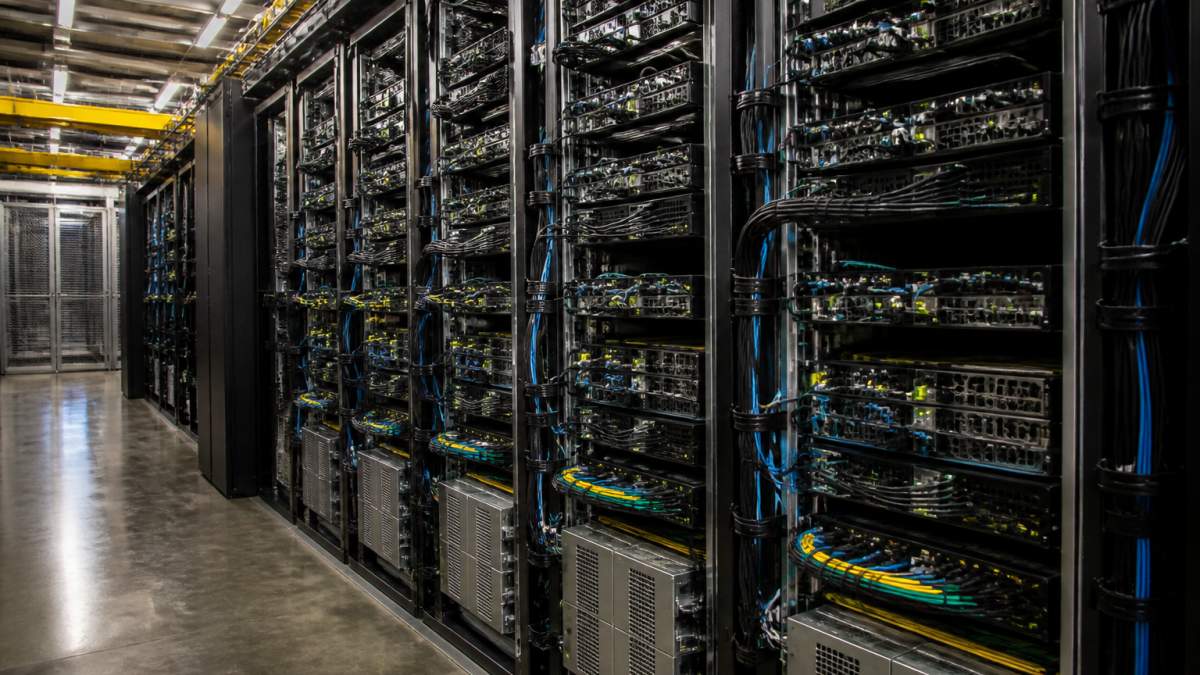
A data center technician in a server aisle inspecting a rack cabinet filled with blade servers, blue indicator lights glowing and neatly bundled cables visible, cool overhead lighting

Typical Monthly Rates by Rack Size

Rack Configuration Typical Monthly Range Best For
1U to 2U Lowest entry point One or two servers
Quarter rack (10U) Mid-range Small deployments
Half rack (21U) Moderate to high Growing workloads
Full rack (42U) $300 to $5,000+ High-density compute

The pattern is simple: the smaller the footprint, the more you pay per unit of space. A single 1U slot costs far more per rack unit than a full cabinet, because the provider still absorbs fixed costs for cooling, security, and floor space.

Full Rack Colocation Cost and What Drives It

Full rack colocation cost is driven less by floor space than by three variables: power density, bandwidth commitment, and redundancy level. A 42U cabinet with modest power draw and a single connection sits at the low end. The same cabinet with redundant power feeds, diverse fiber paths, and a serious bandwidth commit climbs quickly.

Power is the biggest lever. Brightlio’s 2026 colocation pricing data reported rates of $200 to $230 per kW per month for a 250-500 kW requirement in the first quarter of 2026. Scale that logic down to a single rack and you can see why a 15 kW cabinet costs multiples of a 4 kW one.

What most guides miss is that the market has shifted. DataCenterHawk’s 2026 beginner’s guide describes colocation pricing as undergoing its most significant transformation after nearly 15 years of declining rates. The cheap-rack era is closing.

Watch Out
Signing a multi-year rack contract on a low headline rate without capping power overage charges is the most common costly mistake. Ask for the per-kW overage rate in writing before you sign.

Half Rack Colocation Cost: When It Makes Sense

Half rack colocation cost fits the gap between “one server” and “a full cabinet,” and it’s the right call for a specific profile: you’ve outgrown a handful of dedicated servers but you’re not drawing enough power or filling enough units to justify 42U.

The economics work in your favor on space and against you on flexibility. You pay less per month than a full rack, but you also inherit less headroom. If your workload grows 30% in a year, you may be negotiating an upgrade before the term ends.

Where it genuinely wins is predictability. Agencies running a fixed client base, or teams with a stable appliance footprint, get the security and control of colocation without paying for empty units. If your growth curve is steep or unpredictable, a dedicated server arrangement often costs less than a half rack you’ll outgrow.

Colocation Power Costs: The Line Item That Moves the Most

Colocation power costs are the single most volatile part of your bill, and they’re the reason two providers can quote the same rack at wildly different prices. Power is priced either as an included allowance or as a metered per-kW charge, and the difference matters enormously.

Build & Price ?

Under an included-allowance model, you get a set amperage per rack and pay overage if you exceed it. Under metered pricing, every kilowatt is billed. The first feels safer; the second is usually cheaper if you know your actual draw.

Know your draw before you shop. Pull real power figures from your current environment or your hardware specs, then add 20% headroom. Providers price on committed power, and under-declaring it is how you end up with overage charges that dwarf the rack fee.

Pro Tip
Ask every provider for their per-kW overage rate and their power usage effectiveness figure. A facility with a poor efficiency ratio burns more electricity to deliver the same compute, and you pay for it.

Colocation Setup Fees and Other One-Time Charges

Colocation setup fees cover the physical work of getting you installed: racking and stacking hardware, cabling, IP allocation, and account provisioning. These are one-time charges, and they vary from waived to several hundred dollars depending on the provider and the complexity of your deployment.

The charges that catch people off guard are the recurring extras:

  • Cross-connects: private links to carriers or other networks, billed monthly per connection
  • Remote hands: on-site technician time, often billed hourly with a minimum
  • Bandwidth overage: charges above your committed rate
  • Additional IP addresses: usually a small monthly fee per block
  • Power overage: the big one, billed per kW above your allowance

At ServerPronto, our colocation customers get 24/7 on-site technicians and transparent pricing with no hidden fees, which means these line items are quoted upfront rather than discovered on invoice three.

How to Estimate Your Monthly Colocation Bill

Estimating your monthly colocation bill comes down to five inputs: rack size, committed power, bandwidth, cross-connects, and remote hands allowance. Get those numbers and you can build a realistic figure before you ever request a quote.

Here’s the checklist we’d use:

  • Measure actual power draw from current hardware, then add 20% headroom
  • Confirm whether power is included or metered, and get the overage rate
  • List every cross-connect you need and its monthly cost
  • Estimate remote hands hours per month based on your team’s access
  • Confirm the bandwidth commit and overage rate
  • Ask which setup fees are one-time versus recurring
  • Request a sample invoice with all line items populated

Add the recurring items together, multiply by 12, and compare that annual figure across providers rather than the monthly headline. The lowest rack rate frequently loses once power and connectivity are included.

If you’d rather skip the guesswork, our team will build a configuration and price it out line by line. You can build and price a colocation or dedicated server setup directly, with month-to-month billing and no contract lock-in.

Frequently Asked Questions

How much does colocation rack space cost per month?

Monthly rates vary widely by rack size and power draw. Overall rack pricing spans a broad range depending on requirements and market. Single-unit colocation can start at a lower point.

Is power included in colocation rack pricing?

Sometimes, but not always. Many providers quote a base rack fee that covers space, cooling, and a set power allowance, then bill overages separately. High-density deployments are often priced per kW instead. Ask whether your quote includes power, how much, and what the overage rate is before signing.

What is the difference between full rack and half rack colocation cost?

A full rack holds up to 42U of equipment and typically costs more because it includes more space, power, and cooling. Half racks offer roughly 21U and suit smaller deployments. The pricing for half racks is generally lower than full racks. The gap widens with power density, so compare quotes at your actual kW draw, not just unit count.

What additional fees should I expect beyond the monthly rack fee?

The rack fee is rarely the whole bill. Expect possible setup or installation fees, cross-connects, remote hands labor, bandwidth overages, and DDoS protection. Providers list power, bandwidth, connectivity, redundancy, and support requirements as pricing factors alongside space. Ask for a written breakdown of one-time and recurring charges so you can compare total monthly cost, not just the headline rack rate.


Colocation pricing in 2026 rewards preparation and punishes assumptions. The providers worth working with will show you every line item before you commit, including the power overage rate that decides whether your budget holds. ServerPronto offers colocation space backed by 24/7 on-site technicians, a 100% uptime guarantee, and month-to-month terms, so you can scale your footprint without renegotiating a multi-year contract. Build and price your configuration to see the real monthly number.

Table of Contents

Last Updated: October 18, 2026

Is Reseller Hosting Profitable in 2026? The Short Answer

Yes, reseller hosting can be profitable in 2026, but not in the way most guides suggest. According to WebPros’ Web Hosting Trends Report 2026, 65% of 446 hosting providers surveyed reported revenue growth in 2025, yet the same report notes that the path to profitability is getting harder.

Here’s the uncomfortable truth. Reseller hosting is a thin-margin business. A participant in a HostingDiscussion forum thread on reseller economics called reseller and shared hosting tiers among the lowest-profit segments, especially as control panel licensing costs rise.

What the 2026 Market Data Actually Shows

The 2026 evidence is thin. Beyond the WebPros survey, most reseller income claims lack published methodology, ISPmanager, for instance, states that maximum reseller profit is typically beyond a thousand dollars monthly, but provides no evidence.

What the data does support:

  • Revenue growth is happening across hosting providers as a group
  • Profitability is getting tighter, not easier
  • Control panel licensing is a rising cost line for resellers

So the honest answer to whether reseller hosting is profitable in 2026 is: it depends entirely on your costs, your churn, and how you price. Below, we’ll show you exactly how to model all three.

How Reseller Hosting Works and Where the Money Comes From

Reseller hosting is a business model where you buy hosting capacity wholesale from a provider and resell it to your own clients under your own brand. You manage billing, client accounts, and usually first-line support; the provider manages the servers.

The money comes from one place: the gap between your wholesale cost and your retail price. That gap has to cover everything else.

Your revenue is monthly recurring revenue from client accounts. Your costs are:

  • Wholesale hosting fees from your provider
  • Control panel and billing automation licenses
  • Payment processing fees
Watch Out
The most common mistake is pricing against wholesale cost only. A hosting plan that costs you a set amount per month and sells for double looks like 50% gross margin. After payment fees, panel licenses, and an hour of support per client per month, that margin can vanish. Price against total cost, not wholesale cost.

Reseller Hosting Startup Costs: What You’ll Spend Before Your First Client

Startup costs for a reseller hosting business are lower than most people expect, which is exactly why so many start without a plan.

The real startup budget breaks into four buckets:

Cost Category What It Covers Ongoing or One-Time
Wholesale hosting plan Capacity for your first clients Ongoing
Control panel license Client account management Ongoing, per account
Billing automation Invoicing, renewals, dunning Ongoing
Brand and site Domain, basic site, payment setup Mostly one-time

Notice what’s missing: no dollar figures. That’s deliberate, pricing depends on the provider, plan size, and how many client accounts you need.

The cost that surprises new resellers isn’t the hosting. It’s the licensing that scales with every client account you add.

Your Reseller Hosting Business Plan: The Numbers That Decide Viability

A reseller hosting business plan lives or dies on four numbers: net profit per client, customer acquisition cost, churn, and support hours per client. Get those right and the rest is execution.

A small business owner at a tidy desk reviewing a spreadsheet of expenses and revenue on a laptop, with a notepad and coffee nearby in a bright home office

A Worked Profit-and-Loss Example for 2026

The figures below are illustrative assumptions, not quotes from any provider.

Assumptions for a single client account, per month:

  • Retail price (R): $25
  • Wholesale capacity cost (W): $8
  • Panel and billing license allocated to the account (L): $3

That is a 13% net margin on a plan that looks like a 68% gross margin before support and fees. This is the single most important lesson in reseller hosting: gross margin is not profit. Now scale it across customer counts, holding the same per-client economics and adding a fixed monthly overhead of $60 for your site, billing tools, and a small ad budget:

Clients Monthly Revenue Variable Costs Fixed Overhead Net Profit Net Margin
10 $250 $217.50 $60 -$27.50 negative
25 $625 $543.75 $60 $21.25 3.4%
50 $1,250 $1,087.50 $60 $102.50 8.2%
100 $2,500 $2,175.00 $60 $265.00 10.6%
200 $5,000 $4,350.00 $60 $590.00 11.8%

Two things jump out. At 10 clients you’re losing money even though every client is “profitable” on paper, fixed costs must be covered first.

Run the same model with support time cut to 0.25 hours per client through automation and self-service docs, and net profit per client rises to $8.25.

Customer Acquisition Cost and Break-Even

Break-even is simple once you know your net profit per client per month and what it cost to win that client.

If your net profit per client is P per month and your customer acquisition cost is A, you break even on that client after A ÷ P months. Using the $3.25 per-client profit above:

  • A referral client acquired for $0 pays back immediately.
  • A client acquired through $30 of paid ads breaks even after about 9 months.
  • A client acquired through $90 of paid ads breaks even after about 28 months, longer than many clients stay.

That’s the argument for niche marketing and referral programs: a narrow target market means cheaper acquisition and faster break-even. It also explains why resellers who buy broad ads before building a referral engine often quit in year one, their payback period exceeds their retention period.

Pro Tip
Track acquisition cost per channel from day one, even manually in a spreadsheet. Referrals from existing clients usually cost the least and retain the longest. Most resellers don’t measure this until year two, by which time they’ve overspent on the wrong channels.

Churn and Customer Lifetime Value

Recurring revenue only compounds if clients stay. Customer lifetime value (LTV) is net profit per client per month times average months retained. At $3.25 per month and 24-month retention, LTV is $78; at 12 months it drops to $39, and any acquisition channel costing more than that is a loss.

The practical rule: know your LTV before you scale any paid channel, and keep acquisition cost well below it. Retention improvements compound faster than acquisition wins because they raise LTV on every client you already have.

Reseller Hosting Pricing Strategy: Setting Retail Prices That Hold Up

Retail pricing for reseller hosting should be built bottom-up: total cost per account, plus target margin, plus a buffer for support, never top-down by copying a competitor’s advertised price. “Charge more than you pay” isn’t a strategy; it’s a way to lose money slowly.

Build & Price ?

Calculate Your Floor Price First

Your floor price is the retail price at which a client contributes zero net profit after all variable costs. Using the previous assumptions, $8 wholesale, $3 license, 3% payment processing, and 0.5 support hours at $20/hour, the floor is:

Floor = W + L + S + 0.03R, solved for R

At those inputs the floor lands near $22. Any price below that loses money on every client. A $25 retail price clears the floor by only $3.25, which is why the entry tier cannot be your main offer. Price the entry tier at or just above the floor only when it is a deliberate loss-leader that converts into a higher tier.

Build Three Tiers Around Cost, Not Competitors

A pricing strategy that holds up has three tiers, and each tier does a specific job:

  • Entry tier: priced near the floor, minimal support, designed to convert. It should be self-service by default so support hours stay low.
  • Core tier: your main offer, priced at roughly 1.5x to 2x the floor, where most clients land. This tier carries the business.
  • Premium tier: bundles value-added services like backups, migrations, or managed updates. Price it on the value of the outcome, not on hosting capacity.

The premium tier is where reseller hosting actually becomes profitable. Hosting itself is a commodity; the services around it are not. A backup-and-restore service that takes 15 minutes a month to run can justify a price premium far larger than the underlying capacity cost.

Price Support Into Every Tier

The most common pricing error is selling a tier with unlimited support at a price that only covers hosting. Support is a variable cost and belongs in the price.

A practical approach: cap included support hours per tier, publish what is included, and charge for work beyond it. Clients accept clear boundaries far better than they accept slow responses caused by unpriced support load.

Key Takeaway
Your margin doesn’t come from hosting. It comes from what you bundle with it and how you price support. Resellers who sell only capacity compete on price and lose. Resellers who sell outcomes and price support honestly keep clients and stay profitable.

When to Raise Prices

Raise prices when support hours per client rise, license costs increase, or your floor price moves above your entry tier. Give existing clients notice and grandfather them for a defined period if you can afford it. A small, well-communicated increase retains more clients than a large one forced by margin collapse. Review pricing every six months against actual cost per account, not competitors’ ads.

Best Reseller Hosting Providers 2026: What to Vet Before You Sign

Choosing a reseller hosting provider is due diligence, not shopping. The best provider is the one whose infrastructure, support, and billing terms match how you plan to run your business.

Vet these six things before you sign anything:

  • Uptime track record: ask for specifics, not marketing claims
  • Support responsiveness: test it before you buy, with a real ticket
  • Control panel options: confirm what’s included and what costs extra

That last one gets skipped constantly. A provider you can leave easily is a provider you can trust.

For resellers who outgrow shared wholesale capacity, the upgrade path matters too. ServerPronto provides dedicated servers and cloud hosting with full root access, month-to-month billing, and 2-hour provisioning, which suits resellers who want to move clients onto exclusive resources without long contracts.

Churn, Retention, and the Support Workload Nobody Warns You About

Churn is the quiet killer of reseller hosting businesses. Strong acquisition with weak retention is a bucket with a hole in it, every client lost costs you the acquisition spend and future recurring revenue.

Retention starts with onboarding. Clients who understand what they bought and get a fast answer in week one stay far longer than clients who feel abandoned.

The support workload is the part nobody warns you about. Every client account generates tickets, password resets, email setup, plugin conflicts, billing questions.

Watch Out
Don’t scale client count faster than you can scale support. A reseller who adds clients faster than they can handle tickets trades profit for burnout, and churn follows. Automate the routine tickets first, then grow.

Retention also depends on service quality you can actually promise. Shared capacity means noisy neighbors. Exclusive resources mean predictable performance. That’s the trade-off every growing reseller eventually faces.

Conclusion: Who Should and Who Shouldn’t Start a Reseller Hosting Business

Reseller hosting is profitable in 2026 for people who run it like a business: model costs first, price from total cost, track acquisition and churn, and automate support before scaling.

If you’re a freelancer, small agency, or entrepreneur with an existing client base, reseller hosting can turn those relationships into recurring revenue.

The resellers who scale past wholesale limits eventually need infrastructure they control. ServerPronto offers dedicated servers, GPU environments, and private cloud with no contracts, 24/7 on-site technicians, a 100% uptime guarantee, and a 7-day money back guarantee.

Frequently Asked Questions

How many customers do you need to make reseller hosting profitable?

It depends on your retail pricing and operating costs, not a fixed number. Run the math: if your wholesale plan costs a set monthly amount and you sell each client account at a markup, divide your total monthly costs (wholesale plan, billing tools, support time) by your average gross profit per client. That gives a rough break-even count. Many resellers find that a small base of 20 to 40 paying clients covers costs, but churn and acquisition costs can push that higher. Build the calculation into your reseller hosting business plan before you launch.

Is reseller hosting a good side business in 2026?

It can be, with realistic expectations. Reseller hosting offers recurring revenue and low technical overhead, but it is competitive and margins are thin at the low end. Industry discussion suggests reseller and shared tiers are among the lowest-profit hosting segments, and one vendor estimate puts maximum reseller profit beyond a thousand dollars monthly without providing methodology. Treat it as a small recurring-revenue business that rewards niche focus and good retention, not passive income. A clear reseller hosting pricing strategy and a defined target market matter more than the wholesale price you negotiate.

What are the main costs of running a reseller hosting business?

The core costs are your wholesale hosting plan, a billing and automation tool, a control panel license if not included, payment processing fees, and your own time on support. Marketing and customer acquisition add more. Startup costs are usually modest: a reseller plan, a domain, and a billing setup. The ongoing cost that surprises people is support labor, because every client ticket lands on you unless your provider offers end-user support. Factor that into your reseller hosting startup costs and monthly budget before you set retail prices.

How do reseller hosting businesses make money?

Resellers buy wholesale hosting capacity and resell it as individual hosting plans at a retail markup. Gross profit is the difference between what you pay your provider and what clients pay you. Net profit subtracts billing tools, payment fees, marketing, and support time. Additional revenue comes from value-added services such as site migrations, maintenance, security add-ons, and design work. The businesses that last usually pair hosting with a service niche, which raises retention and lets them charge more than commodity hosting prices.


Ready to move beyond wholesale capacity? Build & Price your dedicated server with ServerPronto and give your clients the exclusive resources that keep them paying month after month.

Table of Contents

Last Updated: October 17, 2026

What You’ll Need Before You Calculate Data Center Power

Data centers consumed roughly 192 TWh of electricity in 2024, about 4.7% of all power used in the United States, according to the U.S. Data Center Tracker. That figure is enough to run 18 million homes. Getting your own numbers right starts with three inputs: a full equipment inventory, the manufacturer nameplate ratings, and your facility’s PUE.

At ServerPronto, we size dedicated and colocation environments for hosting agencies, SaaS teams, and AI workloads every week. Here is the short version of what you need before you touch a calculator:

  • Equipment list: every server, switch, storage array, and GPU node, plus quantities
  • Nameplate watts: the rating printed on each unit’s power supply
  • Use estimate: how hard each device will actually run
  • Facility overhead: your cooling and distribution multiplier, usually expressed as PUE
  • Growth and redundancy targets: how much spare capacity you need
Pro Tip
Pull nameplate data straight from the vendor spec sheet, not the label on the chassis. Labels often list the maximum input rating, which can run well above what the unit draws in normal operation.

Step 1: Estimate IT Equipment Load With the Data Center Power Consumption Formula

The data center power consumption formula is simple: add up the watts each device draws, multiply by hours of operation, then divide by 1,000 to convert to kilowatt-hours. For a single server rated at 400 watts running 24 hours a day, that is 400 × 24 ÷ 1,000 = 9.6 kWh per day.

The hard part is not the math. It is deciding which wattage to plug in.

Nameplate Watts vs. Real Operating Load

Nameplate watts describe the maximum a power supply can deliver. Real operating load is what the hardware actually pulls under your workload. A server with dual 800W supplies might idle near 150W and peak near 500W. Sizing on 1,600W of nameplate capacity would overbuild your facility by a wide margin.

Most planning teams apply a use factor between 60% and 80% of nameplate for production gear. Track actual draw with a PDU meter or a clamp meter before you commit to a number.

Step 2: Run a Server Rack Power Calculation

A server rack power calculation multiplies the number of units per rack by their real operating draw, then adds switch and storage overhead. If a rack holds 20 servers at 350W each, plus 2 switches at 200W, the rack load is 7,000W, or 7 kW.

A technician in a server room holding a clamp meter near a rack of servers, checking power draw on a labeled breaker panel

That gives you power density per rack, a figure that drives cooling design and circuit sizing. Modern AI racks push far higher: GPU nodes can draw several kilowatts each, so a single rack may exceed 30 kW.

Power Factor, Voltage, Phase, and Current

Electrical capacity is measured in amps, not watts, so you need one more conversion. For single-phase AC circuits, amps = watts ÷ (volts × power factor). For three-phase circuits, amps = watts ÷ (volts × power factor × 1.732).

Power factor is the ratio of real power to apparent power. Modern server power supplies typically run above 0.9, but confirm it on the spec sheet. Get this wrong and you undersize breakers.

Step 3: Convert IT Load to Facility Power With PUE

Power Usage Effectiveness (PUE) is the ratio of total facility power to IT equipment power. A PUE of 1.5 means every watt of IT load needs another half watt for cooling, lighting, and distribution losses. The conversion is straightforward: facility demand = IT load × PUE. If IT load is 100 kW and PUE is 1.5, facility power is 150 kW. Maintaining this efficiency requires constant vigilance, as unexpected spikes in facility demand often signal underlying issues that necessitate troubleshooting power loss to prevent catastrophic downtime.

What most guides skip is that PUE bundles several distinct overheads, and each behaves differently when you change redundancy or cooling design:

  • Cooling (the largest slice): chillers, CRAC/CRAH units, pumps, and fans. Air-cooled rooms commonly land near 1.4-1.6 PUE; well-designed containment and economizers push toward 1.2; liquid cooling for high-density GPU racks can go lower.
  • UPS and power distribution losses: every conversion step loses energy. A modern UPS may run 94%-97% efficient, and PDUs, transformers, and busway each take a small cut. These losses scale with load, so they matter more as density rises.
  • Lighting and miscellaneous: a small but real load, office space, security, monitoring.

Why PUE Alone Undersizes Redundant Facilities

PUE tells you how much facility power the IT load requires. It does not tell you how much installed capacity you must buy. Redundancy does that. An N+1 UPS configuration means you install one more module than the load needs; a 2N design means you install two full independent paths. Neither changes the PUE-adjusted demand, but both change the nameplate capacity, switchgear rating, and footprint you must provision.

A practical pattern: calculate facility demand with PUE, then apply the redundancy multiplier to the electrical distribution equipment, not to the IT load itself. A 150 kW facility demand under 2N may require 300 kW of installed UPS and switchgear capacity even though average draw stays near 150 kW.

Pro Tip
Use a design PUE for sizing and a measured PUE for forecasting energy costs. Design PUE reflects worst-case cooling conditions; annualized PUE reflects real weather, part-load behavior, and economizer hours, and is usually lower.

Google reported a 2025 fleet-wide average PUE of 1.09, per Google Data Centers, which shows how much overhead efficiency varies by design. Treat any PUE figure as an assumption to be validated, not a constant.

Build & Price ?

Step 4: Separate Peak Demand, Average Load, and Design Capacity

Three numbers matter, and mixing them up is the most common sizing error we see. Peak demand is the highest draw your equipment will hit, even briefly. Average load is what you draw across a typical day. Design capacity is what you build for, with headroom on top of peak.

Size electrical gear to peak demand plus a safety margin. Size energy budgets and utility contracts to average load. Design capacity should leave room for growth, typically 20% to 30% spare.

Step 5: Validate Your Numbers With a Data Center Power Consumption Calculator

A data center power consumption calculator turns your inputs into a facility estimate. Schneider Electric’s power sizing tool lets you configure traditional or AI/HPC servers, storage, and design choices to model requirements. Use it to cross-check your manual work, not replace it.

Run the same scenario twice with different assumptions. The IEA 4E critical review of data center energy models shows how widely forecasts diverge: one scenario projected nearly 8,000 TWh globally by 2030, while the International Energy Agency’s base case sits near 945 TWh. Assumptions drive outcomes.

Step 6: Data Center Power Capacity Planning for Growth and Redundancy

Data center power capacity planning means forecasting demand, adding redundancy, and phasing capacity so you never run out of headroom. U.S. data center power demand is projected to climb from 31 GW in 2025 to 66 GW in 2027, per Goldman Sachs, so growth assumptions deserve real scrutiny. But the planning method matters more than the forecast.

Build the Load From the Rack Up, Then Add Losses

Start with your modeled IT load (Step 1-2), apply PUE (Step 3), then add the losses that occur between the utility feed and the rack:

  • Transformer and switchgear losses: typically a few percent each.
  • UPS losses: 3%-6% depending on efficiency and load level.
  • PDU and busway losses: small per unit but cumulative across a large room.

A common pattern is to add 5%-10% on top of the PUE-adjusted figure to cover distribution losses before you size the utility service. Skipping this step is how facilities end up short on breaker capacity at the worst moment.

Model Growth in Phases, Not a Single Number

Forecasting a single future load hides the timing problem. Instead, build a phased table: current rack count, planned additions by quarter, expected watts per rack as workloads shift (especially GPU nodes that can draw several kilowatts each), and the utilization ramp for each phase. Then check each phase against installed capacity.

  • Utilization assumption: new racks rarely hit full load on day one. Model a ramp (for example, 40% at launch, 70% at six months) so you do not overbuild for a peak that arrives later than planned.
  • Refresh cycles: hardware replacements often increase density per rack even when rack count stays flat. Plan for watts-per-rack to rise over the facility’s life.
  • Stranded capacity: capacity you install but cannot use because cooling or circuits in that zone are maxed out is wasted capital. Phase electrical and cooling together.

Redundancy Changes Installed Capacity, Not Load

N+1 and 2N designs protect against failure, but they multiply the equipment you install. Decide redundancy tier per zone based on workload criticality, a 2N design for a revenue-critical GPU cluster may be justified, while a dev/test zone can run N+1 or even N. Document the tier so future expansions do not accidentally downgrade it.

Close the Loop With Metered Data

Capacity planning is not a one-time calculation. Meter at the server, rack PDU, UPS, and facility level, then compare measured draw to your model every quarter. A persistent gap between modeled and measured load, even 10%-20%, is a signal to revise assumptions before the next phase. The teams that plan well treat the model as a living document, not a spreadsheet filed after the build.

Watch Out
Skipping a validation pass against real PDU data is the mistake that hurts most. A 20% gap between modeled and measured load can leave you short on breaker capacity right when a new client goes live.

Conclusion

Sizing data center power is a discipline, not a guess. The teams that get it right inventory their gear, model real load, and validate against measured draw before they commit capital. If you would rather not build that capacity yourself, ServerPronto offers dedicated servers, GPU environments, and colocation with full root access, 2-hour provisioning, month-to-month billing, and 24/7 on-site technicians. Build and price your configuration and let our team help you size it correctly.

Frequently Asked Questions

How do you calculate the power requirements for a server rack?

Add up the operating wattage of every device in the rack, then multiply by a diversity factor to account for the fact that not all equipment draws its maximum at once. A rack holding ten servers rated at 500 watts each, with a 0.8 diversity factor, works out to 4,000 watts, or 4 kW per rack. Multiply that by your rack count to get total IT load, then apply PUE to reach facility demand.

What is the formula to calculate data center power consumption?

The core formula is total facility power equals IT load divided by PUE. If your servers, storage, and networking draw 400 kW and your PUE is 1.4, facility power is roughly 571 kW. To annualize, multiply by 8,760 hours and your load factor. At 400 kW average and a 0.7 load factor, annual electricity consumption comes to about 2.45 million kWh.

What is the difference between IT load and total facility power?

IT load is what the servers, storage, and network gear actually consume. Total facility power adds cooling, power distribution losses, lighting, and everything else needed to keep that equipment running. PUE expresses the ratio. Google reported a fleet-wide average PUE of 1.09 in 2025, meaning only 9 cents of overhead per dollar of IT power, while many facilities run closer to 1.4 to 1.6.

How much extra power capacity should a data center plan for growth?

Plan for the load you expect in 24 to 36 months, not today’s draw. U.S. data center power demand is projected to rise from 31 GW in 2025 to 66 GW in 2027, according to Goldman Sachs, so growth assumptions matter. Size electrical distribution and cooling for design capacity, but track utilization separately so you can phase in capacity instead of paying for idle infrastructure.

Table of Contents

Last Updated: October 16, 2026

Step 1: Verify Your Bare Metal Server Prerequisites

Before you configure a private network between bare metal servers, confirm what your provider actually gives you. A bare metal network links two or more dedicated servers so they trade data without touching the public internet. At ServerPronto, we see this question constantly from agencies running databases, apps, and AI workloads across multiple machines.

Here is what you need in place first:

  • Two or more servers in the same data center, ideally the same rack
  • A second network interface on each server for private traffic
  • Your private IP block and subnet details from your provider
  • Root access so you can edit network configuration files
  • A maintenance window, because interface changes can drop connectivity
A technician in a data center aisle inspecting network cables plugged into a bare metal server rack, with blinking port lights visible

The second interface matters most. Many providers hand you one public port and nothing else. Ask for a private interface before you deploy, not after. Adding one later usually means a rebuild.

Watch Out
The most common mistake is assuming your provider already wired a private link between your servers. Most have not. Confirm the private interface exists in your control panel before you plan anything else.

Step 2: Plan Your Private Network Architecture

Good architecture decisions here save hours of rework later. Map your layout on paper before you touch a single config file.

Start with three questions:

  1. How many servers will join the private network now, and in a year?
  2. Do the servers sit in the same rack, the same data center, or multiple locations?
  3. Does your traffic need encryption, or is the private link already isolated?

Same-rack servers usually share a switch, so a simple Layer 2 setup works. Servers in different racks or buildings need Layer 3 routing or an encrypted tunnel. Pick your private IP range from RFC 1918 space, which the IETF’s address allocation standards define for exactly this purpose.

Layer 2 vs Layer 3: Which Fits Your Setup?

Layer 2 connects servers on the same physical segment, like one VLAN on one switch. It is fast and simple, but it does not cross routers.

Layer 3 routes traffic between subnets. It works across racks and locations, and it scales further.

Factor Layer 2 Layer 3
Scope Same rack or switch Across racks and sites
Setup speed Fast Moderate
Scales to A handful of servers Many servers, many subnets
Best for Simple clusters Multi-site deployments

If your servers share a rack, start with Layer 2. If they live in multiple locations, go Layer 3 from day one.

Build & Price ?

Step 3: Bare Metal Server VLAN Configuration

VLAN configuration on bare metal usually happens on the provider side, not inside your operating system. A VLAN tags traffic so your servers stay isolated from other customers on the same physical switch.

Here is the typical flow:

  1. Log into your provider’s control panel.
  2. Create a VLAN and assign a VLAN ID.
  3. Attach each server’s private interface to that VLAN.
  4. Save and wait for the change to apply.

Once the VLAN is live, your servers can see each other on the private segment. They cannot see anyone else’s traffic. That isolation is the whole point.

A common mistake is skipping the VLAN and plugging both servers into the same flat network. It works, until another customer’s misconfigured machine floods the segment. Tag your traffic.

Step 4: Private IP Address Configuration for Servers

Private IP address configuration for servers follows one rule: every machine on the bare metal network needs a unique address in the same subnet.

A typical plan looks like this:

  • Server A: 10.0.0.1
  • Server B: 10.0.0.2
  • Server C: 10.0.0.3
  • Subnet mask: 255.255.255.0
  • Gateway: 10.0.0.254 (only needed for Layer 3)

Write this table down before you start. Assigning the same address twice causes an IP conflict, and the second server simply will not connect.

Pro Tip
Reserve the first ten addresses in your range for gateways, switches, and future hardware. Renumbering a live server later is far more painful than planning ahead now.

Step 5: Linux Network Interface Configuration

Linux network interface configuration is where most of the real work happens. The steps differ by distribution, so know which one you run.

On modern Ubuntu and Debian systems, edit the Netplan file:

network:
  version: 2
  ethernets:
    ens224:
      addresses:
        - 10.0.0.2/24
Then apply it:

```bash
sudo netplan apply
On RHEL, Rocky, and AlmaLinux, create a file in `/etc/sysconfig/network-scripts/`:

```bash
DEVICE=ens224
BOOTPROTO=none
IPADDR=10.0.0.2
PREFIX=24
ONBOOT=yes
Then restart the interface:

```bash
sudo nmcli connection reload
sudo nmcli connection up ens224
The [official Netplan documentation](https://netplan.io/faq) covers the YAML syntax in full if you need edge cases.

## Step 6: Security and Access Control for Private Traffic

A private network is isolated, but isolated is not the same as secure. Treat private traffic with the same care as public traffic.

Build these controls in from the start:

- **Firewall rules** that allow only the ports you actually use
- **SSH keys** instead of passwords between servers
- **Encrypted tunnels** like WireGuard for traffic crossing untrusted links
- **Access logs** so you can trace who connected to what

For firewall rules, allow only what each service needs. A database server might accept port 5432 from one app server and nothing else. Everything else gets dropped.

If your servers sit in different locations, wrap the private link in a WireGuard tunnel. It encrypts the traffic end to end, and it is far simpler than most VPN setups. The [WireGuard project documentation](https://www.wireguard.com/quickstart/) walks through the key exchange.

## Step 7: How to Troubleshoot Server Network Connectivity

When a private link fails, work from the bottom up. Start with the physical layer, then move to addressing, then routing.

Run these checks in order:

1. **Interface up?** Run `ip link show` and confirm the private interface shows `UP`.
2. **Address assigned?** Run `ip addr show` and check the IP is on the right interface.
3. **Can you reach the neighbor?** Run `ping 10.0.0.1` from the other server.
4. **Route correct?** Run `ip route` and confirm the subnet routes through the private interface.
5. **Firewall blocking?** Temporarily check your rules with `sudo iptables -L -n`.
6. **VLAN tagged?** Confirm the VLAN ID matches on both ends.

If ping works but your app does not, the problem is almost always a firewall rule or a service bound to the wrong interface.

### Common Mistakes to Avoid

Most private network failures trace back to a short list of errors:

- Assigning duplicate IP addresses across servers
- Forgetting to bring the second interface up on boot
- Mixing VLAN IDs between servers
- Leaving the default route pointed at the private interface
- Testing only with ping and never checking the actual service port


<div style="margin:1.5rem 0; padding:16px 20px; background-color:#f0fdf4; border-left:4px solid #bbf7d0; border-radius:0 8px 8px 0;">
<strong style="display:block; margin-bottom:4px; color:#111827; font-size:14px;"> Key Takeaway</strong>
<span style="color:#374151; font-size:15px; line-height:1.6;">Ping proves the link exists. It does not prove your application can talk across it. Always test the real port your service uses before you call the job done.</span>
</div>

## Conclusion

Getting a private network between bare metal servers right comes down to planning your addressing, tagging your VLANs, and testing beyond a simple ping. When you run databases, apps, and [AI workloads](/spu/2026/09/dedicated-gpu-cost-machine-learning-2026/) across multiple machines, the private link is the backbone that keeps everything fast and isolated.

That is where ServerPronto fits. We provide bare metal, GPU, and private cloud environments with full root access, a private interface ready for your VLAN, and 2-hour provisioning so your servers are live the same day. Our 24/7 on-site technicians handle the hardware, and our month-to-month billing means no contracts and no surprise fees.

Build & Price your configuration and get your private network running without the guesswork.


<section style="margin:3rem 0 2rem 0;" itemscope itemtype="https://schema.org/FAQPage"><h2 style="font-weight:700; margin:0 0 4px 0;">Frequently Asked Questions</h2><div style="padding:20px 0; border-bottom:1px solid #e5e7eb;" itemscope itemprop="mainEntity" itemtype="https://schema.org/Question"><h3 style="font-weight:600; margin:0 0 8px 0;" itemprop="name">How do you connect two bare metal servers on a private network?</h3><div style="line-height:1.7;" itemscope itemprop="acceptedAnswer" itemtype="https://schema.org/Answer"><p itemprop="text" style="margin:0;">Connect both servers to the same switch or VLAN, assign each a private IP address from the same subnet, and configure the network interfaces on each machine. For example, set server A to 10.0.0.1/24 and server B to 10.0.0.2/24 on a dedicated private interface. Then verify connectivity with ping and confirm firewall rules allow traffic on the ports your applications use. This keeps inter-server traffic off the public internet entirely.</p></div></div><div style="padding:20px 0; border-bottom:1px solid #e5e7eb;" itemscope itemprop="mainEntity" itemtype="https://schema.org/Question"><h3 style="font-weight:600; margin:0 0 8px 0;" itemprop="name">Can bare metal servers communicate over a private network without internet access?</h3><div style="line-height:1.7;" itemscope itemprop="acceptedAnswer" itemtype="https://schema.org/Answer"><p itemprop="text" style="margin:0;">Yes. A private network between bare metal servers operates independently of public internet routing. As long as both servers connect to the same switch, VLAN, or private subnet, they can exchange traffic using private IP addresses. This is common in data centers where internal replication, database clustering, and backup traffic stay on isolated network segments. You still need internet access separately if the servers must reach external services or receive updates.</p></div></div><div style="padding:20px 0; border-bottom:1px solid #e5e7eb;" itemscope itemprop="mainEntity" itemtype="https://schema.org/Question"><h3 style="font-weight:600; margin:0 0 8px 0;" itemprop="name">How do you troubleshoot server network connectivity between bare metal servers?</h3><div style="line-height:1.7;" itemscope itemprop="acceptedAnswer" itemtype="https://schema.org/Answer"><p itemprop="text" style="margin:0;">Start with ping to confirm basic reachability, then check the route table with ip route to verify the correct gateway and subnet. Use ip addr to confirm the private IP is assigned to the right interface. If ping works but applications fail, test specific ports with tools like nc or ss. Check firewall rules on both servers with iptables -L or nft list ruleset. Also verify VLAN tagging matches on both ends of the link.</p></div></div><div style="padding:20px 0; border-bottom:1px solid #e5e7eb;" itemscope itemprop="mainEntity" itemtype="https://schema.org/Question"><h3 style="font-weight:600; margin:0 0 8px 0;" itemprop="name">How do you secure traffic between servers on a private network?</h3><div style="line-height:1.7;" itemscope itemprop="acceptedAnswer" itemtype="https://schema.org/Answer"><p itemprop="text" style="margin:0;">Even on a private network, encrypt sensitive traffic with WireGuard or another VPN tunnel between servers. Restrict firewall rules so only required ports and source IPs can communicate. Use separate VLANs to isolate workloads, such as keeping database replication traffic apart from web tier traffic. For remote access, require SSH key authentication and disable password logins. Monitoring tools should alert on unexpected traffic patterns or failed connection attempts.</p></div></div></section>

Table of Contents

Last Updated: October 15, 2026

Colocation vs Dedicated Hosting Explained: What Each Model Actually Means

Colocation vs dedicated hosting explained comes down to one question: do you own the hardware or rent it? That decision shapes your costs, your control, and how much of your week disappears into maintenance.

The distinction matters more than most buyers realize. Industry comparisons from NetRouting’s colocation vs dedicated server overview note that dedicated hosting lets providers deploy servers quickly, while colocation rewards businesses that already own equipment and want to keep it.

Colocation Hosting Meaning: Your Hardware in Someone Else’s Data Center

Colocation hosting is a model where you own the server hardware and rent space, power, cooling, and network connectivity inside a provider’s data center. You keep the machine. The facility keeps it running.

That split of responsibilities is the whole point. According to DataBank’s colocation vs dedicated hosting comparison, colocation lets businesses retain ownership of their hardware while the provider handles the physical environment.

  • You supply: servers, storage, network gear, operating systems, applications
  • The data center supplies: rack space, power, cooling, bandwidth, physical security, access control
  • You handle: server management, patching, monitoring, troubleshooting
Pro Tip
Before you commit to colocation, measure your actual rack depth and power draw. A server that fits in a two-post rack at the office may not match the four-post cabinets most facilities use, and power circuits are often sold in fixed increments. Getting this wrong means paying for space you can’t use.

Dedicated Hosting: Renting a Physical Server From a Provider

Dedicated hosting is a model where you rent an entire physical server from a provider, and no other customer shares its resources. You get exclusive use of the CPU, RAM, and storage without owning any of the hardware.

The provider owns the machine, houses it, maintains it, and replaces failed components. You get full root access and a standard configuration, then install whatever your applications need. InMotion Hosting’s guide to colocation vs dedicated server hosting describes dedicated hosting as offering standardized configurations, which is exactly why it deploys faster than building your own box.

  • The provider supplies: the physical server, the data center, power, cooling, network, and hardware repairs
  • You supply: the operating system configuration, applications, and ongoing server management
  • Provisioning is fast: some providers, including ServerPronto, provision in as little as two hours

The trade-off: you give up hardware flexibility in exchange for not buying, shipping, or repairing anything.

Side-by-Side Comparison: Colocation vs Dedicated Hosting at a Glance

A data center technician in a server room inspecting rack-mounted servers with a laptop, rows of blinking server units in the background
Factor Colocation Dedicated Hosting
Hardware ownership You own it Provider owns it
Upfront cost Capital expenditure on servers Low upfront, recurring fees
Hardware choice Full customization Standard configurations
Deployment speed Slower, you ship and rack Fast, often same day
Server management Entirely yours Yours, but hardware is covered
Scalability Add your own hardware Add another rented server
Best for Stable, long-term workloads Growing teams, faster starts

Colocation favors control and long-term economics; dedicated hosting favors speed and lower operational burden. The decision usually comes down to whether your team has time to manage hardware.

Colocation Hosting Benefits and Trade-Offs for Growing Teams

The strongest colocation hosting benefits show up when you already own servers and want to keep using them: you avoid re-buying hardware, keep full customization, and gain power, cooling, and redundancy most offices can’t match.

Control is the headline advantage, you decide the exact CPU, storage layout, and network cards.

The trade-offs are real, though:

  • You carry the capital expenditure. Buying servers upfront is a large, lumpy cost.
  • You own every failure. A dead drive at 2 a.m. is your problem, not the provider’s.
  • Physical access takes planning. Most facilities require scheduled visits and access control clearance.
Watch Out
The most common colocation mistake is underestimating the operational load. Teams budget for rack space and bandwidth, then discover they also need monitoring, remote hands for physical tasks, and a spare-parts plan. Skip these and a single hardware failure can take a service down for days.

Dedicated Server vs Colocation for Small Business: Which Fits Your Scale?

For most small businesses, dedicated hosting wins on simplicity. You rent a physical server, get root access, and start deploying the same week. There’s no hardware to buy, ship, or insure.

The dedicated server vs colocation for small business question usually resolves to team size and workload stability. A business running a stable, long-term workload with existing hardware may find colocation cheaper over several years, as DataCate’s total cost of ownership analysis suggests for the right workloads.

Ask yourself three questions:

  1. Do we already own server hardware we want to keep using?
  2. Does our workload stay stable for years rather than months?
  3. Do we have staff who can manage and repair physical servers?

Three yeses point toward colocation. Any no points toward renting.

Best For
Small businesses and agencies that need predictable monthly billing, fast provisioning, and full root access without buying hardware. Renting a dedicated server removes the capital expense and the repair burden in one move.

Colocation Hosting Costs and Dedicated Pricing Models Compared

Colocation hosting costs and dedicated pricing follow different shapes. Colocation splits into a large upfront hardware purchase plus recurring fees for rack space, power, bandwidth, cross-connects, and remote hands. Dedicated hosting folds the hardware, the facility, and the repairs into one recurring monthly charge.

Colocation front-loads spending, then runs leaner month to month. Dedicated hosting spreads the cost evenly, easier on cash flow, but rarely cheaper long-run for a stable workload.

What actually drives the recurring bill

Colocation recurring fees are metered, not flat. Typical line items:

  • Rack space: billed per rack unit (U) or per partial/full cabinet. A 1U slot costs far less than a full 42U cabinet, but a full cabinet usually lowers your cost per U.
  • Power: billed per amp or per kilowatt (kW) of committed draw, often with a cap. Power is frequently the largest line item after hardware.
  • Bandwidth: billed either as a committed rate (a fixed monthly allotment at a set port speed) or as 95th-percentile burst billing, where the top 5% of samples are discarded.

Dedicated hosting recurring fees are bundled. One monthly figure includes the chassis, CPU, RAM, storage, facility, power, cooling, network port, and hardware replacement. You pay separately, if at all, for:

  • Bandwidth overage beyond the included allotment
  • Management level, unmanaged, semi-managed, or fully managed changes the price materially
  • Control panel or software licenses (cPanel, Windows Server, and similar)

The upfront asymmetry

Colocation requires buying the server before you pay anyone to house it, the reason it looks expensive in year one and cheap in year four. Dedicated hosting has effectively zero upfront hardware cost.

Build & Price ?

Why we do not publish flat rates

Pricing for both models depends on your configuration, power needs, and bandwidth requirements. A 1U server drawing 1 amp in a shared cabinet and a full 42U cabinet drawing 10 kW are not the same product. For current pricing, build your configuration and get a quote directly from ServerPronto.

Key Takeaway
Colocation trades higher upfront costs for lower recurring fees and more control. Dedicated hosting trades hardware ownership for predictable monthly billing and zero repair work. Match the model to your cash flow and your team’s capacity, not to a headline price.

Total Cost of Ownership, SLAs, and Security Responsibilities Over Time

Total cost of ownership flips the comparison the longer you hold the hardware. Over a short horizon, renting usually costs less because you skip the purchase. Over three to five years, owning hardware in colocation can come out ahead for stable workloads, because you stop renting a machine you could have bought.

The TCO crossover, line by line

A full TCO comparison must include costs a monthly invoice hides. On the colocation side, add up:

  • Hardware purchase, server, storage, NICs, rails, and any spares you keep on the shelf
  • Recurring facility fees, rack units, power, bandwidth, cross-connects, remote hands
  • Replacement cycle, drives, PSUs, and fans fail on a schedule; budget for it

On the dedicated side, add up:

  • Monthly rental across the full term, including any rate increases at renewal
  • Management add-ons if you buy a managed tier
  • Bandwidth overages beyond the included allotment

The crossover point is where cumulative colocation spend drops below cumulative dedicated spend. A server running the same job for five years rewards ownership; a workload that changes shape every year punishes it.

SLAs: what is actually covered, and what is not

A service-level agreement in either model covers the facility and the network, not your software stack. Read it for four things:

  1. Uptime commitment, usually expressed as a percentage of network or power availability, with a defined measurement window.
  2. Response time, how fast the provider acknowledges and begins work on an incident, separate from resolution time.
  3. Remedy, most SLAs pay service credits against your monthly bill rather than cash. Credits are usually capped and require you to file a claim within a window.
  4. Exclusions, scheduled maintenance, customer-caused outages, and upstream carrier issues are commonly excluded.

The responsibility split looks like this:

Responsibility Colocation Dedicated Hosting
Facility uptime and power Provider Provider
Network availability to the demarc Provider Provider
Hardware failure and replacement You Provider
Operating system and patching You You
Application and data You You
Physical security and access control Provider Provider
Compliance and audit evidence You You

Notice what stays the same: in both models you remain responsible for your operating system, applications, and data, while physical security and facility uptime belong to the provider. The difference is who owns a failed drive at 2 a.m.

Security and compliance: the shared-responsibility line

Facility controls, badge access, cameras, locked cabinets, visitor logs, are the provider’s job in both models. Everything above the hypervisor is yours:

  • You own OS hardening, patch cadence, firewall rules, and key management.
  • You own audit evidence for standards like SOC 2, HIPAA, or PCI DSS that touch your stack.
  • You own data residency decisions, even though the provider owns the building.

Teams often assume the provider’s compliance certifications cover their workload. They do not, the provider’s SOC 2 report covers the provider’s controls, not yours. If your auditor asks for evidence of patching, log retention, or access reviews on your servers, that evidence must come from you in both models.

Watch Out
The most expensive TCO mistake is treating the monthly invoice as the whole cost. Teams that skip staffing, spares, and replacement cycles routinely find that colocation’s apparent savings evaporate in year two, not because the model is wrong, but because the budget was incomplete.

Migration, Exit Planning, and a Workload-Based Decision Framework

Migration and exit planning separate a smooth move from a painful one.

Leaving colocation for dedicated hosting means planning hardware disposal or repurposing plus a data migration window.

Here’s the framework we’d use:

  • Stable workload, long horizon, in-house ops: colocation
  • Growing workload, fast deployment needed: dedicated hosting
  • GPU or AI training workloads: dedicated GPU servers, so you avoid buying specialized hardware outright

For teams migrating off large cloud providers to control costs, renting dedicated servers often delivers predictable monthly pricing without the capital outlay of buying hardware.


Choosing between colocation and dedicated hosting gets harder as your infrastructure grows, because the wrong model quietly drains either your budget or your team’s time.

Frequently Asked Questions

What does colocation hosting mean in simple terms?

Colocation hosting means you own the server hardware and rent space for it in a data center. The facility supplies rack space, power, cooling, bandwidth, and physical security, while you handle the server’s operating system, software, and configuration. In a colocation vs dedicated setup, this is the key split: with colocation you keep the physical server; with dedicated hosting the provider owns the machine and rents it to you. For teams with existing hardware or strict customization needs, colocation hosting benefits often outweigh the added management work.

What is the difference between colocation and dedicated hosting?

The difference comes down to who owns and manages the physical server. With colocation, you buy and maintain the hardware, and the data center provides rack space, power, cooling, and network connectivity. With dedicated hosting, the provider owns the server and leases it to you, usually with standardized configurations and optional managed support. You still get exclusive resources in both cases, but colocation gives more hardware control while dedicated hosting reduces your operational load.

Who is responsible for maintaining hardware in a colocation facility?

You are. In colocation, the data center maintains the building, power, cooling, and physical security, but your server hardware, its operating system, and any failed components are your responsibility. If a drive or power supply fails, you or your team arrange the replacement, often with remote hands support from the facility for a fee. Dedicated hosting flips this: the provider handles hardware maintenance, so you focus on the application layer instead of spare parts.

When should a business choose a dedicated server instead of colocation?

Choose a dedicated server when you want exclusive resources without owning hardware. This fits small businesses, agencies, and SaaS teams that need predictable performance, fast deployment, and no capital expenditure on servers. Colocation makes more sense when you already own hardware, need custom configurations, or plan to run a larger fleet over several years. For a dedicated server vs colocation for small business decision, start with your workload stability and whether you have staff to manage physical hardware.

Is colocation better than dedicated server hosting?

Neither is universally better. Colocation can be cheaper over a three-to-five-year ownership horizon for the right workload, according to DataCate’s total cost of ownership analysis, while dedicated servers can win on shorter time horizons. The right pick depends on your hardware ownership plans, management capacity, and how much control you need over configurations. Teams without in-house hardware expertise usually get more value from dedicated hosting, while organizations with existing server fleets often prefer colocation.

Table of Contents

Last Updated: October 14, 2026

Why Hidden Bandwidth Fees Wreck Bare Metal Hosting Budgets

The most transparent pricing in bare metal hosting comes from providers that publish their bandwidth allowance, overage rate, and billing model before you sign. Everything else is a guess until the invoice arrives. This guide from ServerPronto compares how providers structure data-transfer charges, and which ones leave the fine print for later.

Hidden bandwidth fees hurt because they arrive after the decision is made. You commit to a physical server, migrate workloads, and then discover that the traffic you assumed was included is billed separately. A single busy month can turn a fixed cost into a variable one.

The three most common ways providers hide data-transfer costs:

  • Metered allowances with steep overage rates. Your plan includes a set volume, and every gigabyte past it is billed at a premium.
  • “Unmetered” plans with port speed caps. The volume is unlimited, but throughput is throttled, so you pay for capacity you cannot use.
  • Egress billed at 95th percentile. Your bill reflects a burst you may not have noticed, calculated from sampled traffic rather than total volume.
Watch Out
The most expensive mistake is assuming “unmetered” means “no limits.” Many providers pair unmetered bandwidth with a fair-use policy or a port speed cap, and exceeding either triggers throttling or a forced upgrade.

How We Evaluated Pricing Transparency Across Providers

We scored providers on four things: published bandwidth terms, overage billing method, contract flexibility, and whether the listed price is the billed price. A provider that publishes a clear allowance and a stated overage rate scores higher than one that advertises “unlimited” and explains the limits in a policy page.

Pricing transparency in bare metal hosting means the provider states, before purchase, how much data transfer is included, what happens when you exceed it, and whether the monthly rate changes after an introductory period. That definition is the standard we applied to every provider below.

What counts as a hidden bandwidth fee:

  • An overage rate that appears only in the terms of service
  • A fair-use clause that allows throttling without a stated threshold
  • A port speed cap described as “unmetered bandwidth”
  • A renewal rate that differs from the advertised rate

FCC Consumer Guide to broadband service disclosures outlines the kind of plain-language disclosure consumers should expect from service providers, and the same principle applies to infrastructure billing.

Bare Metal Server Bandwidth Pricing: A Side-by-Side Breakdown

Bare metal server bandwidth pricing falls into four models, and the labels providers use are not standardized. Before you can compare two quotes, you have to translate them into the same vocabulary. Here is the working definition we apply to every provider below.

Billing model What you are billed for Where the risk sits
Metered with overage A fixed included volume, then a per-unit rate past it You, if traffic spikes
Unmetered with a port cap Nothing by volume; throughput is capped at the port speed Performance, not the invoice
Flat-rate inclusive One price regardless of volume, within a fair-use ceiling The provider, up to the ceiling
95th-percentile (burst billing) The 95th-highest sampled reading across the month You, if traffic is bursty

Those four definitions are the ones to hold providers to. A plan advertised as “unmetered” is only comparable to another “unmetered” plan once you know the port speed and the fair-use threshold. A “flat-rate” plan is only flat until you hit the ceiling the provider buried in the acceptable use policy.

How the Major Providers Structure Bandwidth Terms

Provider Bandwidth model Overage / cap approach Contract flexibility
ServerPronto Flat-rate inclusive Stated in writing before purchase; no hidden data-transfer fees Month-to-month, no contracts
OVHcloud Unmetered dedicated server option Promoted as no hidden charges; port speed varies by plan Term-based options
InterServer Fixed pricing No hidden renewal hikes cited Monthly and longer terms
Hetzner Metered with included volume Overage rate published per plan Monthly
Servers.com Not published on plan pages Not published Quote-based

The pattern worth noticing is not which provider is cheapest. It is which providers publish the two numbers that determine your worst-case bill: the overage rate (or the fair-use ceiling) and the port speed. A provider that publishes both lets you model your own traffic. A provider that publishes neither is asking you to trust the invoice.

Standardizing the Terms Before You Compare Quotes

When you request quotes, ask each provider the same four questions so the answers line up in a single row:

  1. What is the included monthly data transfer, stated in a specific unit (TB, GB, or “unlimited within a fair-use ceiling of X”)?
  2. What is the per-unit overage rate, and is it billed on total volume or 95th-percentile sampling?
  3. What is the guaranteed port speed, and is it dedicated or shared?
  4. Does the renewal rate differ from the introductory rate?

If a provider answers all four in writing, you can put it in the table above and compare it honestly. If it answers two and deflects on the rest, that is the answer.

Pro Tip
Ask every provider to quote the same configuration, same CPU class, same RAM, same storage, same port speed, so the only variable left in the comparison is the bandwidth terms. Otherwise you are comparing servers, not pricing policies.

ServerPronto: Transparent Pricing With No Contracts

ServerPronto publishes what is included, bills month-to-month with no contracts, and does not attach hidden fees to data transfer.

What that looks like in practice:

  • 2-hour provisioning so you are not waiting days to test real throughput
  • Full root access to install custom database modules and software without restriction
  • No contracts, month-to-month billing, so you can leave if the terms change
  • 24/7 on-site technicians rather than a ticket queue that answers in days
  • 100% uptime guarantee backed by more than 20 years in hosting

For agencies reselling infrastructure, the month-to-month model matters most. You can pass predictable costs to your clients without locking yourself into a term that outlasts the relationship.

Pro Tip
Ask for the overage rate in writing before you sign, even with a transparent provider. A written rate protects you if the plan terms change later, and it gives you a document to compare against the first invoice.

Unmetered Dedicated Server Hosting: What It Actually Means

Unmetered dedicated server hosting means the provider does not bill by total data volume. It does not mean unlimited throughput. Most unmetered plans pair a volume-free model with a port speed limit, so the constraint moves from gigabytes to gigabits per second.

Build & Price ?

That distinction changes how you plan capacity. On a metered plan, a traffic spike costs money. On an unmetered plan with a port cap, a traffic spike costs performance. Neither is free, but only one produces a surprise invoice.

Fair-Use Policies and Port Speed Caps to Read First

Read two clauses before you buy any unmetered plan: the fair-use policy and the port speed specification.

  • Fair-use policy: defines what the provider considers abnormal usage and what it may do about it. Look for a stated threshold, not vague language about “excessive” use.
  • Port speed: the ceiling on throughput. A 1 Gbps port and a 10 Gbps port behave very differently under sustained load, even if both are labeled unmetered.

If a provider will not state either number in writing, treat the unmetered claim as marketing rather than a specification.

Dedicated Server Bandwidth Limits: Reading the Fine Print

Dedicated server bandwidth limits appear in three places: the plan page, the acceptable use policy, and the invoice. The plan page is marketing. The policy and the invoice are where the real limits live.

A person at a desk studying a printed server invoice with a highlighter, laptop showing a bandwidth usage graph beside them in a dim home office

Check these five items on any contract before you sign:

  • The included monthly data transfer volume, stated in a specific unit
  • The per-unit overage rate and how it is calculated
  • Whether billing uses total volume or 95th-percentile sampling
  • The port speed and whether it is guaranteed or best-effort
  • The renewal rate and whether it differs from the introductory rate

The 95th-percentile model deserves particular attention. It discards the top 5% of sampled readings and bills the next highest, which rewards steady traffic and punishes short bursts. For workloads with sharp peaks, that model can cost more than a straightforward metered plan.

NIST guidance on cloud computing standards is a useful reference for understanding how service levels and measurement terms should be documented in infrastructure contracts.

Which Provider Fits Your Workload? A Decision Framework

Match the billing model to your traffic shape, not to the lowest advertised number. Use this framework:

  • Steady, predictable traffic: a metered plan with a clear overage rate is usually cheapest. You will rarely exceed the allowance.
  • Bursty traffic with sharp peaks: avoid 95th-percentile billing. Choose a flat-rate inclusive plan instead.
  • High sustained throughput: an unmetered plan with a high port speed, provided the fair-use threshold is stated.
  • Uncertain or growing traffic: month-to-month billing with no contract, so you can change plans without penalty.
  • Agency reselling to clients: predictable per-client costs matter more than the lowest base rate.
Key Takeaway
The billing model matters more than the headline rate. A cheaper server with an unpublished overage rate is a more expensive server the first time your traffic spikes.

Conclusion: Verify the Bill Before You Migrate

The gap between advertised and actual cost in bare metal hosting almost always comes down to bandwidth terms nobody read carefully. Before you migrate, get the allowance, the overage rate, the port speed, and the renewal price in writing, then compare those four numbers across providers instead of comparing the base rate.

ServerPronto publishes its bandwidth terms up front, bills month-to-month with no contracts, provisions in about two hours, and gives you full root access with 24/7 on-site technicians behind a 100% uptime guarantee. If unpredictable overages are what pushed you to look for a new provider, that combination is the fix.

Build and price your configuration with ServerPronto and see the full cost before you commit, not after.

Frequently Asked Questions

How do bare metal hosting companies charge for bandwidth?

Most bill one of three ways: a fixed monthly allowance with overage charges past the cap, unmetered bandwidth tied to a set port speed, or metered data transfer billed per gigabyte. The billing model matters more than the headline rate, because a cheap plan with a tight allowance can cost far more once traffic grows. Ask for the allowance, the overage rate, and whether inbound traffic counts before you sign.

Is unmetered bandwidth the same as unlimited bandwidth?

No. Unmetered dedicated server hosting means the provider does not bill by the gigabyte, but it still caps you by port speed, typically 1 Gbps or 10 Gbps. Unlimited bandwidth usually appears in marketing for shared plans and rarely survives a fair-use policy. With unmetered hosting, your real ceiling is throughput, not a meter, so a sustained 1 Gbps connection moves roughly 324 terabytes per month.

How can I tell whether a bare metal plan includes bandwidth?

Check four things: the monthly allowance in terabytes, the overage rate per terabyte, the port speed, and whether inbound transfer is counted. If any of those is missing from the product page, request it in writing before ordering. Providers that advertise transparent pricing should state all four plainly, and a quote that omits them is the first sign of a surprise bill later.

What should I compare when evaluating bare metal server pricing?

Compare total cost of ownership, not the sticker rate. Add the base monthly fee, any management or setup fees, the bandwidth allowance, and the overage rate at your expected traffic. Then check contract length and billing flexibility, since month-to-month terms let you leave if costs creep. A provider with a slightly higher base rate and a generous allowance often beats a cheaper plan with tight limits.

Do bare metal hosting providers charge extra for data transfer?

Some do, and the charge usually hides in an overage rate rather than a line item. Providers with unmetered bandwidth or 95th-percentile billing models avoid per-gigabyte fees but can still bill you if sustained traffic exceeds your committed port speed. Read the fair-use policy and confirm whether overage applies to outbound traffic only or both directions.

Table of Contents

Last Updated: October 13, 2026

Best GPUs for Local LLM Training: Quick Comparison

Finding the best GPU for local LLM training demands serious hardware. The difference between a workable setup and a frustrating one comes down to VRAM, memory bandwidth, and whether you’re fine-tuning existing models or training from scratch.

Most people chase the biggest GPU name without understanding what they need. A 24 GB card handles inference beautifully; training a 70B parameter model requires something entirely different.

Quick Picks:

  • Best for Consumer Training: RTX 5090, maximum VRAM in a single consumer GPU with 32 GB GDDR7
  • Best Budget Option: RTX 5060 Ti, 16 GB VRAM at $429-$499, suitable for smaller models and fine-tuning
  • Best for Serious Training: L40S, 48 GB of memory for comfortable large-model work without extreme workarounds
GPU VRAM Memory Bandwidth Best For Price Range
RTX 5090 32 GB GDDR7 1,792 GB/s Consumer training, 32B models Contact for pricing
RTX 4090 24 GB GDDR6X 1,008 GB/s Inference, smaller fine-tuning Used: $1,500-$2,200
RTX 5060 Ti 16 GB GDDR7 576 GB/s Budget fine-tuning, Ollama $429-$499
L40S 48 GB High bandwidth Comfortable training, fewer workarounds Contact for pricing
NVIDIA B200 192 GB HBM3e 8 TB/s 70B+ training, data-center scale Contact for pricing

NVIDIA GeForce RTX 5090: Maximum VRAM for Consumer Training

The RTX 5090 is the consumer GPU ceiling for local LLM work. With 32 GB of GDDR7 memory and 1,792 GB/s memory bandwidth NVIDIA GPU specifications, it can handle 32B models at Q4 quantization on a single card, a real capability for teams that want local training without jumping to enterprise hardware.

It’s the right pick for fine-tuning mid-size models without renting cloud GPUs. The 32 GB VRAM is a genuine step up from the RTX 4090’s 24 GB, giving breathing room for gradient accumulation, larger batch sizes, and less aggressive quantization.

Where it falls short: it’s still a consumer card. Full-model training on 70B parameters requires multi-GPU or data-center hardware, its bandwidth lags enterprise accelerators, and power demands serious cooling.

Pro Tip
Pair the RTX 5090 with at least 64 GB of system RAM and an NVMe SSD for swap. Fine-tuning workloads benefit from fast I/O when moving data between system memory and GPU VRAM.

GPU VRAM Requirements for LLM Fine-Tuning

Memory capacity is the hard constraint in local LLM work, but “how much VRAM do I need” is the wrong first question. The right one is: which of the three workloads are you running? They have wildly different memory profiles, and conflating them is the most common reason people buy the wrong card.

The three workloads, defined:

  • Inference, running a frozen model to generate text. Weights sit in VRAM; no gradients, no optimizer state. A 7B model at Q4 fits in roughly 5-6 GB; a 70B model at Q4 in roughly 40-42 GB.
  • Fine-tuning, updating a subset of weights (LoRA/QLoRA adapters) or all weights (full fine-tuning) on a pretrained base. You hold weights + activations + gradients + optimizer state.
  • Training from scratch, random initialization, full backprop, full optimizer state, often mixed precision. The memory-hungriest regime by a wide margin, and rarely what a local user actually means.

The keyword says “training,” but most readers searching this are fine-tuning. The recommendations below are split accordingly.

VRAM by model size and method

These are working minimums for a single GPU, assuming a 4-bit or 8-bit base where noted and a modest batch size. Add headroom for longer sequences, attention memory scales with context, not just parameter count.

Model size Inference (Q4) LoRA fine-tune (bf16 base) QLoRA fine-tune (4-bit base) Full fine-tune (bf16)
7B ~5-6 GB ~16-18 GB ~8-10 GB ~80-100 GB
13B ~8-10 GB ~24-28 GB ~12-16 GB ~160-200 GB
32B ~18-20 GB ~48-64 GB ~24-32 GB ~400 GB+
70B ~40-42 GB ~120 GB+ ~40-48 GB ~1 TB+

Those full fine-tune numbers are why almost nobody full-fine-tunes a 70B model on a single card. The optimizer state alone (Adam holds two moments per trainable parameter, typically in fp32) can be 8 bytes per parameter before weights, gradients, or activations.

Why LoRA and QLoRA change the math

LoRA freezes the base weights and trains small low-rank adapter matrices injected into attention and MLP layers. Trainable parameters drop by roughly 99% on a typical rank-16 configuration, collapsing optimizer state and gradient memory.

QLoRA goes further: it quantizes the frozen base to 4-bit (NF4 is common) and dequantizes on the fly during forward and backward passes. That cuts base-weight memory roughly 4x versus bf16, at some throughput cost.

Watch Out
Quantization is not free. A 70B model at bf16 needs roughly 140 GB just for weights. At Q4 that drops to roughly 35-40 GB. QLoRA can squeeze a 70B fine-tune into 24 GB with aggressive gradient checkpointing and a tiny batch size, but throughput drops sharply and you may hit out-of-memory on longer sequences. Match the card to the method, not the other way around.

Method-to-card mapping

  • 7B, QLoRA or LoRA: 16 GB is enough. RTX 5060 Ti (16 GB) or a used RTX 3090 (24 GB) both work.
  • 13B, LoRA: 24 GB is the comfortable floor. RTX 3090 or RTX 4090.
  • 13B, QLoRA: 16 GB works with a small batch and short context.
Pro Tip
Gradient checkpointing trades compute for memory by recomputing activations during the backward pass instead of storing them. It typically cuts activation memory substantially at the cost of roughly 20-30% slower steps. If you are one or two gigabytes short of fitting a run, enable it before you buy a bigger card.

PEFT and QLoRA documentation

What to measure before you buy

Parameter count alone does not predict fit. Sequence length, batch size, precision, optimizer choice, and FlashAttention-style kernels all move the memory number. To compare cards reproducibly, fix those variables, same base model revision, dataset, LoRA rank and target modules, sequence length, and effective batch size, then report peak VRAM and tokens per second.

A common pattern is to log peak VRAM with nvidia-smi or PyTorch’s memory summary during a short warm-up run, then extrapolate. That habit prevents most expensive mistakes in this category.

Best GPU for LLM Fine-Tuning: RTX 4090 and L40S

Two cards dominate the fine-tuning space for different reasons.

The RTX 4090 remains the workhorse. Its 24 GB GDDR6X memory handles 13B models with LoRA without breaking a sweat, and it’s available used at $1,500-$2,200 consumer GPU pricing for local LLM.

The L40S is the upgrade path when you stop fighting memory constraints. With 48 GB of VRAM, it handles full fine-tuning on 70B models without quantization tricks.

The RTX 4090 is suitable for fine-tuning 13B or smaller models on a budget; the L40S is an option for 70B training without quantization workarounds.


Multi-GPU Setup for LLM Training: Scaling Beyond Single Cards

One GPU has limits, and the instinct is to add a second card. Sometimes that works; often it does not, and the reason is almost never raw compute, it is memory, bandwidth, and software.

The three ways to split a model across GPUs

  • Data parallelism (DP): each GPU holds a full copy of the model and processes a different batch slice. Gradients sync every step. Easiest to set up and most common for fine-tuning. It does not reduce per-GPU memory, every card still needs to fit the whole model plus optimizer state.
  • Tensor parallelism (TP): individual layers are split across GPUs, and cards communicate inside every forward and backward pass. Reduces per-GPU memory and is what people usually mean by “VRAM pooling.” Extremely bandwidth-hungry, every layer boundary is a synchronization point.
  • Pipeline parallelism (PP): different layers live on different GPUs, and micro-batches flow through the pipeline. Less inter-GPU traffic than TP, but introduces pipeline bubbles and needs careful micro-batch tuning.

Large training runs combine all three (3D parallelism). For a local two-card setup, you’re realistically choosing between DP (fine-tuning) and TP (fitting a model that does not fit on one card).

VRAM pooling: what actually happens

VRAM does not magically merge. With TP, a 70B model split across two 48 GB cards gives each roughly half the weights plus its share of activations and KV cache, it fits, but you pay a communication tax on every layer. With DP, each card needs the full model, so two 24 GB cards do not let you fine-tune a model needing 40 GB.

Build & Price ?

The interconnect question

Inter-GPU bandwidth determines whether TP is fast or painful:

  • PCIe Gen 5 x16: roughly 128 GB/s bidirectional in theory, less in practice; consumer motherboards often split lanes so two cards run at x8/x8.
  • NVLink (where supported): hundreds of GB/s between paired cards on enterprise parts that still offer it.
  • NVSwitch / InfiniBand: the data-center tier, where dozens of GPUs communicate at near-memory speeds.

Current-generation consumer RTX cards do not offer NVLink, so any multi-consumer-GPU TP setup runs over PCIe, the bottleneck the moment you split layers. For DP fine-tuning, PCIe is usually fine because synchronization happens once per step, not once per layer.

Key Takeaway
Two cheaper cards beat one larger card only when the workload is data-parallel and each card can already hold the full model. If you need VRAM pooling, you are in tensor-parallel territory, and PCIe-connected consumer cards scale poorly there. One 48 GB card is usually a better experience than two 24 GB cards for fitting a large model.

Software support is the real gate

Multi-GPU training is a software problem as much as a hardware one. The relevant stack:

  • NCCL handles collective communication (all-reduce, all-gather) across GPUs and is the backbone of nearly every multi-GPU framework.
  • PyTorch DDP covers data parallelism and is the default for fine-tuning.
  • PyTorch FSDP shards parameters, gradients, and optimizer state across GPUs, this is what lets you fine-tune models larger than a single card’s memory without hand-rolling tensor parallelism.

If your framework does not support the parallelism strategy you want, the second GPU will sit idle. Check support before buying.

Practical limits on consumer hardware

  • PCIe lanes: a typical desktop CPU exposes 16-24 usable lanes. Two x16 cards often drop to x8/x8, and a third forces further splitting. Workstation and server platforms (Threadripper, EPYC, Xeon) expose far more lanes and are the realistic base for 3-4 GPU builds.
  • Power and cooling: each high-end card can draw several hundred watts under load. Two cards plus a CPU can exceed what a standard 15-amp household circuit comfortably delivers on a single PSU, and case airflow becomes a real constraint.
  • Motherboard spacing: triple-slot coolers mean two cards often need a riser or a board with generous PCIe spacing.

Consumer multi-GPU builds typically plateau around two to four cards before the platform itself, lanes, power, thermals, chassis, becomes the limiting factor rather than the GPUs.

When to stop scaling locally

If your run needs more than two or three cards, or NVLink-class interconnect, renting beats owning. Data-center platforms provide the lanes, power, cooling, and interconnect a desktop cannot, and the overhead of a four-GPU workstation rarely pays back for intermittent training. The decision point is usually not “can I afford the cards” but “can I afford the platform they require.”

PyTorch FSDP and distributed training documentation

GPU Server for AI Training: Enterprise and Data-Center Options

Enterprise training demands hardware built for it.

Data center racks with GPU accelerators for the best GPU for local LLM training infrastructure setup

The NVIDIA B200 represents the data-center tier.

The H100 and H200 are the tier below, still enterprise, still expensive, but more accessible than the B200.

AMD’s MI300X offers a non-NVIDIA path for teams evaluating alternatives enterprise GPU comparison for AI. It competes directly with NVIDIA’s high-end accelerators, though ecosystem support (CUDA vs.

ServerPronto’s dedicated GPU servers give you access to enterprise hardware without the capital expense of ownership.


How to Choose the Right GPU for Your LLM Workload

Start with three questions: What model size? What fine-tuning method? What’s your budget?

If you’re fine-tuning 70B models:
The RTX 5090 (32 GB) works with QLoRA and aggressive memory management.

If you’re training from scratch or doing full fine-tuning on 70B+:
Stop looking at consumer cards.

If budget is your primary constraint:
Used RTX 4090s at $1,500-$2,200 deliver solid fine-tuning capacity.

If you’re running inference (not training):
Inference needs less VRAM and tolerates more aggressive quantization.

Best For
Teams running fine-tuning experiments and iterating on model adapters, not teams training models from scratch. Consumer GPUs excel at fine-tuning. Full-model training demands enterprise hardware.

Conclusion

The best GPU for local LLM training depends entirely on what you’re actually training. The RTX 5090 is a leading option in the consumer space with 32 GB VRAM and solid bandwidth.

Most teams shouldn’t buy GPUs. Renting GPU-enabled dedicated servers from ServerPronto gives you enterprise hardware, 24/7 on-site technicians, and month-to-month billing with no long-term contracts. You get full root access to configure your training environment, transparent pricing with no surprise overage charges, and the ability to scale up or down as your workload changes.

Frequently Asked Questions

What is the best GPU for training LLMs locally in 2026?

The best GPU depends on your model size and budget. The RTX 5090 offers 32 GB of GDDR7 memory and can handle 32B models at Q4 quantization on a single card, making it the top consumer choice. For teams needing more memory headroom, the L40S provides 48 GB. If you’re fine-tuning smaller models with LoRA or QLoRA, the RTX 4090 or even RTX 3090 (24 GB) may suffice. Enterprise teams training 70B+ models should consider data-center accelerators like the H100 or B200.

How much VRAM do I need to train an LLM locally?

VRAM requirements depend on your model size, precision, and fine-tuning method. A 7B model requires roughly 14-16 GB for full precision training; 13B models need 24-32 GB. For larger models like 70B, you’ll need 48 GB or more, or use quantization (Q4) and parameter-efficient methods like LoRA to reduce memory footprint. The RTX 5090’s 32 GB handles most consumer workloads; the L40S’s 48 GB provides more comfort for production fine-tuning.

Can I use multiple GPUs for local LLM training?

Yes. Multi-GPU setups scale training workloads across multiple cards using PCIe bandwidth or NVLink (on compatible GPUs). Multi-GPU training requires careful synchronization, and PCIe bandwidth can become a bottleneck compared to data-center accelerators with NVLink. A single high-memory GPU can be simpler for many teams; multi-GPU setups are an option to explore once single-card capacity is outgrown.

What’s the difference between training and inference GPUs?

Training GPUs prioritize raw compute and memory bandwidth for gradient calculations and parameter updates. Inference GPUs optimize for throughput and latency on fixed models. Consumer GPUs like the RTX 5090 handle both workloads, but data-center accelerators like the H100 and B200 are built for training at scale. Inference can run on lower-memory consumer cards or even older models; training demands higher VRAM and bandwidth, especially for large models or full-precision work.

Table of Contents

Last Updated: October 12, 2026

Atlantic vs PhoenixNAP Dedicated Server Pricing: What the 2026 Numbers Actually Show

Atlantic vs PhoenixNAP dedicated server pricing is a comparison people search for constantly, and it is also one of the hardest to answer honestly.

A 2026 review from VPSRated’s phoenixNAP review lists PhoenixNAP’s starting price at $61.36 per month. That single number gets quoted everywhere. What almost nobody quotes is the caveat attached to it: the review never identifies the server configuration or billing terms behind that figure.

That gap matters. Without matching hardware, a starting price is a marketing headline, not a budget line.

Watch Out
Comparing two providers by their advertised “starting at” figures is the most common mistake in this category. A $61.36 entry point and a $30 entry point can describe completely different processors, memory, and contract terms. If you pick a host on that basis, you will discover the real cost only after you have migrated.

Atlantic.Net vs PhoenixNAP Pricing: The Verified Numbers and Their Limits

The verified record here is thinner than most comparison articles admit. PhoenixNAP’s $61.36 monthly figure comes from VPSRated’s 2026 review, and a separate comparison site lists a different PhoenixNAP starting figure of $30.00 per month, according to SourceForge’s provider comparison.

On the Atlantic.Net side, the search results return provider roundups rather than a price list. Atlantic.Net’s own 2026 dedicated hosting roundup ranks itself first and PhoenixNAP second, but the page contains no prices and no stated methodology.

That is the honest state of the evidence. One provider has multiple, conflicting public price signals. The other has none that are configuration-specific.

Why the Two Published Figures Do Not Describe the Same Machine

The $61.36 and $30.00 figures are not a pricing disagreement. They are two different products wearing the same label. A bare-metal cloud instance billed hourly with automated provisioning is a different cost structure than a traditional dedicated server leased month-to-month with a fixed hardware bill of materials. When a review quotes a single starting number without naming the CPU model, core count, RAM, storage type, or billing term, that number cannot be compared to anything.

A practical normalization exercise makes the problem concrete. Take a mid-range single-socket configuration that both providers can theoretically quote:

Line item What to specify Why it changes the quote
CPU Exact model, core count, base clock A current-generation 16-core part can cost two to three times an older 8-core part
RAM Capacity and generation (DDR4 vs DDR5) Database and virtualization workloads are memory-bound first
Storage NVMe vs SATA SSD vs HDD, plus capacity NVMe carries a premium; capacity tiers are not linear
Bandwidth Included transfer and per-TB overage rate Overage rates vary more between providers than base rates do
Billing term Hourly, monthly, or reserved Reserved pricing can cut the effective rate substantially versus hourly
Setup One-time fee or waived A setup fee can erase a month of headline savings
IP addresses Included count and per-IP cost Extra IPs are a recurring line item, not a one-time charge

Until both quotes fill in every row with the same values, the two starting prices are marketing inputs, not budget inputs.

What the Public Record Actually Supports

Here is what a reader can responsibly conclude from the available sources:

  • PhoenixNAP publishes at least one starting figure in the low-to-mid double digits per month, but the configuration behind it is not disclosed in the sources reviewed.
  • A second source lists a lower PhoenixNAP starting figure, which suggests the two numbers describe different products or different billing terms rather than a price change.
  • Atlantic.Net does not publish a configuration-specific dedicated server price in the pages reviewed, so any “Atlantic.Net costs X” claim is an estimate, not a quote.
  • Third-party rating data does not close the gap. A 2026 comparison reports PhoenixNAP at 3.8 stars from 23 reviews and Servers.com at 3.4 stars from 19 reviews, per RFP.wiki’s provider comparison. That comparison does not include Atlantic.Net, so it cannot establish relative customer satisfaction between the two providers you are actually weighing.
Watch Out
A starting price without a configuration is not a price. It is a floor that the provider reserves the right to raise the moment you add the RAM, storage, or bandwidth your workload actually needs. Treat every unconfigured starting figure as a placeholder.

The Normalization Test You Can Run in One Email

Send both providers the same request: quote a single-socket server with a named current-generation CPU, a specific core count, a specific RAM capacity, NVMe storage at a named capacity, a stated monthly transfer allowance with the per-TB overage rate, and a stated contract length with renewal terms.

If one provider answers with a configuration and a total monthly figure and the other answers with a starting price and a sales contact, you have your comparison. The provider that can produce a normalized quote is the provider that can be compared.

Why the Atlantic.Net Side of This Comparison Has No Published Price

Dedicated hosting quotes are configuration-driven, so providers that sell customized hardware often skip public list prices entirely. Atlantic.Net’s returned pages are comparison content, not a dated pricing study, which means any “Atlantic.Net costs X” claim you read elsewhere is an estimate dressed up as a fact.

Third-party ratings have the same limitation. A 2026 comparison reports PhoenixNAP at 3.8 stars from 23 reviews and Servers.com at 3.4 stars from 19 reviews, per RFP.wiki’s provider comparison. That comparison does not include Atlantic.Net, so it cannot establish relative customer satisfaction between the two providers you are actually weighing.

Dedicated Server Hardware Specifications Decide the Price, Not the Brand

Dedicated server hardware specifications drive the quote, and the brand name is a distant second. Four line items move the number more than anything else.

A server technician in a data center aisle inspecting an open rack-mounted server chassis, holding a processor module, with rows of blinking server racks behind him

Processor, Memory, Storage and Bandwidth: The Four Line Items That Move the Quote

  • Processor and cores. Core count and clock speed set the floor for compute-heavy workloads.
  • Memory (RAM). Database and virtualization workloads are usually memory-bound first.
  • Storage. NVMe costs more than SATA SSD, which costs more than spinning disk.
  • Network bandwidth. Inbound traffic is typically free; outbound capacity and overages are where bills climb.

ServerMania’s 2026 pricing guide puts dedicated server pricing anywhere from $50 to more than $1,000 per month, per ServerMania’s dedicated server pricing guide. That range is not a cop-out. It is what happens when the same category spans a single-socket workhorse and a multi-socket machine with heavy network capacity.

Build & Price ?

Pro Tip
Ask every provider for a normalized quote: same CPU model, same RAM, same storage type, same bandwidth allotment, same contract length. Until both quotes describe identical hardware, you are comparing marketing, not pricing.

Billing Models: Hourly, Monthly and Reserved Pricing Compared

Billing model changes the effective monthly cost as much as hardware does. PhoenixNAP’s Bare Metal Cloud offers physical servers with automation features and hourly or reserved billing, according to CloudTweaks’ bare metal hosting report. No specific rates appear in that report.

The trade-off is straightforward:

  • Hourly billing suits short projects, testing, and unpredictable workloads. You pay for flexibility.
  • Monthly billing suits steady production workloads. The rate is lower per hour, but you commit for the cycle.
  • Reserved pricing delivers the lowest rate in exchange for a longer commitment.

For a workload running continuously, reserved or monthly almost always beats hourly. For a two-week migration test, hourly wins.

Dedicated Server Bandwidth and Support Comparison

Bandwidth and support are the two line items that decide whether a “cheaper” provider stays cheaper. Entry-level dedicated plans typically include a set monthly transfer allowance, and the cost of exceeding it varies far more between providers than the base rate does.

Support is harder to price because it shows up as downtime instead of an invoice. A provider with slower response times can cost more in a single outage than a year of price difference. This is where ServerPronto’s model is worth contrasting: 24/7 on-site technicians, no contracts, and month-to-month billing, so a support failure never traps you in a term you cannot exit.

Dedicated Server Total Cost of Ownership: The Figure the Sticker Price Hides

Dedicated server total cost of ownership is the number that actually matters, and it includes far more than the monthly rate. Sticker price covers the server. It does not cover migration labor, configuration time, overage charges, or the revenue lost during an outage.

Add these to any comparison:

  • Migration and setup labor
  • Bandwidth overages above the included allowance
  • Management, monitoring, and backup tooling
  • Expected downtime cost per hour
  • Contract exit terms if the provider underperforms

Pricing Scenarios and Break-Even Points for Common Workloads

Workload Billing Fit What Drives the Cost Break-Even Signal
Short-term test or migration Hourly Hours used, no commitment Switch to monthly after ~2 weeks of continuous use
Steady production site Monthly CPU, RAM, bandwidth allowance Monthly rate beats hourly once use exceeds ~300 hours
Predictable long-run app Reserved Commitment length, hardware tier Reserved wins when the workload will not change for the term
Spiky seasonal traffic Monthly plus burst Overage rate, network capacity Compare overage pricing before signing
Key Takeaway
The break-even between hourly and monthly billing lands near 300 hours of continuous use per month. Below that, hourly is usually cheaper. Above it, monthly or reserved almost always wins.

What to Verify Before You Commit to Either Provider

Verify configuration, billing terms, and overage rates in writing before you sign anything. No public starting price survives contact with a real workload.

Ask both providers for:

  • The exact CPU model, core count, and clock speed
  • RAM and storage type, not just capacity
  • Included bandwidth and the per-unit overage rate
  • Contract length, renewal terms, and exit conditions
  • Support response-time commitments in writing

Then normalize the two quotes side by side. If one provider cannot or will not supply the same specification, that is your answer about how the relationship will go.


The real challenge in Atlantic versus PhoenixNAP dedicated server pricing is not finding a number. It is finding two numbers that describe the same machine. Most published comparisons never get there.

If you want a quote you can actually compare, line item by line item, ServerPronto will build one for you.

Frequently Asked Questions

How much do dedicated servers cost in 2026?

A 2026 dedicated-server pricing guide from ServerMania puts the industry range at $50 to more than $1,000 per month, depending on configuration and service level. That spread reflects real differences in processor cores, memory, storage type, bandwidth allowance and whether management is included. Entry-level single-socket servers sit at the low end; multi-socket, high-core machines with large NVMe arrays and generous bandwidth sit at the top. Treat any single starting price as a floor for one configuration, not a general market rate.

What factors affect dedicated server pricing at Atlantic.Net and PhoenixNAP?

The same four variables drive cost at both providers: processor model and core count, memory capacity, storage type and size, and network bandwidth or traffic allowance. Billing terms matter just as much. PhoenixNAP’s Bare Metal Cloud offers hourly or reserved billing, according to CloudTweaks, and hourly billing costs more per unit of time than a reserved commitment. Support level and management add-ons also change the total. Because the two providers publish different levels of detail, you cannot compare their headline figures without matching the underlying hardware first.

Do Atlantic.Net and PhoenixNAP include bandwidth and support with dedicated servers?

Inclusions vary by plan and are not standardized across either provider’s published material. Bandwidth is usually sold as an allowance with overage charges beyond it, so the included amount matters more than the headline price. Support tiers range from basic hardware replacement to fully managed service. Before signing, ask each provider in writing what bandwidth is included, what overage costs, what support response times are guaranteed, and whether remote hands work is billed hourly. Those four answers change the effective monthly cost more than the sticker price does.

What should I check before choosing a dedicated server plan?

Start with the workload: database-driven sites need fast storage and low latency, AI training needs GPU capacity and high memory bandwidth, and reseller hosting needs headroom for many small tenants. Then verify the specification line by line, including processor generation, RAM speed, storage interface, and whether bandwidth is metered or unmetered. Confirm the billing model and contract length, since hourly and reserved pricing produce very different totals over a year. Finally, test support responsiveness before you migrate anything critical.

Table of Contents

Last Updated: October 11, 2026

Managed vs Unmanaged Dedicated Server Hosting: The Core Difference

Managed vs unmanaged dedicated server hosting comes down to one question: who administers the machine? With managed hosting, the provider handles OS maintenance, security patching, and monitoring.

The stakes are climbing. According to Guideflow’s dedicated server hosting analysis, the global dedicated server hosting market is projected to grow from $20.04 billion in 2025 to $23.94 billion in 2026, a reported 19.4% CAGR.

At ServerPronto, we’ve provisioned more than 42,000 servers over 20 years, and the same pattern shows up in nearly every migration conversation: teams rarely regret the hardware choice, but they regret underestimating the operational load.

Managed vs Unmanaged Server Support: What Each Provider Actually Handles

Managed server support covers the operating system layer and above. Unmanaged support stops at the hardware and network. That boundary is the whole ballgame.

A managed dedicated server typically includes:

  • OS installation, kernel updates, and software patching
  • Security monitoring, firewall rules, and malware response
  • Uptime monitoring, alerting, and first-line troubleshooting

An unmanaged dedicated server gives you the hardware, the network, and root access. Everything above the hypervisor is yours: configuration, hardening, patching, monitoring, and incident response. NetRouting’s managed vs unmanaged comparison notes that unmanaged hosting is often less expensive but typically requires substantial technical expertise and responsibility for maintenance.

What most guides miss is that “managed” isn’t a single tier. Some providers manage the OS but not your application stack; others cover patching and monitoring while leaving database tuning to you. Read the support scope line by line before you sign.

Dedicated Server Management Responsibilities: Who Owns What

Dedicated server management responsibilities split along a predictable line, but the exact boundary varies by contract. Most guides stop at “provider handles the OS, you handle the app”, too coarse to be useful.

A system administrator in a data center aisle inspecting a rack of dedicated servers, with a laptop open on a rolling cart showing server monitoring dashboards

The Dedicated Server Responsibility Matrix

Layer Typical Managed Typical Unmanaged What to Confirm in Writing
Physical hardware Provider (chassis, CPU, RAM, disks, PSU) Provider Replacement SLA for failed disks, RAM, and power supplies; whether spare parts are on-site
Network Provider (uplinks, switches, DDoS scrubbing, IP allocation) Provider Whether DDoS mitigation is included or billed per incident; bandwidth overage terms
Hypervisor / virtualization Provider (if applicable) Provider (if applicable) On bare metal this layer doesn’t exist, confirm you’re not paying for a VM
Operating system Provider (install, kernel updates, package patching) Customer Which distros are supported; whether kernel live-patching is included; reboot windows
Security Provider (firewall rules, malware response, vulnerability patching) Customer Whether the provider patches third-party software (web servers, databases) or only the OS
Application stack Customer (almost always) Customer Explicit exclusions list, most “managed” plans exclude app tuning, code deploys, and database optimization
Backups Provider or shared Customer Backup frequency, retention window, restore testing cadence, and whether restores are billable
Monitoring & alerting Provider (infrastructure-level) Customer Whether alerts cover only uptime or also resource thresholds (CPU, disk, memory)
Incident response Shared, provider first-line, customer escalates app issues Customer Escalation path, on-call hours, and whether the provider will touch application logs

Why the Boundary Moves

Three variables shift the managed vs unmanaged line in practice:

  1. Control panel choice. Providers that manage cPanel or Plesk typically extend support to the panel itself. Providers that manage only the OS leave panel configuration to you even on a “managed” plan.
  2. Compliance posture. If you need SOC 2 or HIPAA evidence, the provider usually owns patching logs and access-control records, but only if the contract names those deliverables.
  3. Custom software. The moment you install a non-standard kernel module, GPU driver, or proprietary daemon, most providers step back and treat it as customer-owned, common on AI and machine-learning workloads where CUDA and framework versions change frequently.
Watch Out
The most common mistake we see is assuming “managed” includes application support. It usually doesn’t. If your database needs tuning at 2 a.m., that’s your problem on most managed plans unless the contract says otherwise. Ask for the exclusions list before you sign, it’s usually longer than the inclusions list.

How to Use This Matrix

Print it, then ask your provider to mark each row as provider-owned, customer-owned, or shared. Any blank row will be disputed during an incident. The exercise prevents the most expensive misunderstanding in dedicated hosting: assuming someone else owns the layer that just failed.

Managed Dedicated Server Pros and Cons

The case for managed hosting is straightforward: you trade money for time and coverage. Provider responsibility extends to security updates, patching, and monitoring, so your team isn’t on the hook for routine maintenance.

Pros:

  • Predictable operational load, since the provider owns routine support
  • Faster incident response through 24/7 provider technicians
  • Security patching handled on a schedule you don’t have to build

Cons:

  • Higher monthly cost. HostDean’s web hosting statistics reports managed solutions carry a 20-30% premium over unmanaged equivalents.
  • Less direct control over the OS and security configuration
  • Provider response times still depend on your service-level agreement
Key Takeaway
Managed hosting is a staffing decision disguised as a hosting decision. If you don’t have an administrator who can own patching and monitoring, the premium pays for itself immediately.

Unmanaged Dedicated Server Pros and Cons

Unmanaged hosting hands you full control and a lower base price, then asks for technical expertise in return. HostPapa’s dedicated server comparison frames control over security as a genuine advantage of unmanaged hosting, with the tradeoff that your team retains the responsibility that comes with it.

Pros:

  • Lower monthly cost, since you’re not paying for management
  • Full root access and complete configuration control
  • Freedom to run custom kernels, modules, and software stacks

Cons:

  • Requires real system administration capability in-house
  • You own patching, monitoring, and incident response around the clock
  • A missed security update is your liability, not the provider’s

The savings from unmanaged hosting are real only if your team’s time is genuinely free. It usually isn’t.

Total Cost of Ownership: Beyond the Monthly Management Fee

Total cost of ownership on a dedicated server includes the management fee plus the labor, tooling, and downtime risk that the pricing page never shows. Entry-level self-managed dedicated servers are reported to start around $45-$70 per month, while mid-range and managed plans typically run $150-$400 per month, according to Telco Solutions’ dedicated server provider review.

Add these to any unmanaged comparison:

Build & Price ?

  • Administrator hours for patching, hardening, and monitoring
  • Monitoring and backup tooling licenses
  • On-call coverage for nights and weekends

Run the numbers honestly and the premium often narrows to a fraction of a full-time administrator’s cost. On the managed side, ask what’s excluded, backups, advanced security response, and application support are frequently add-ons.

SLAs, Backups, and Incident Response on Dedicated Servers

A service-level agreement defines what happens when something breaks, and it’s the most under-read document in hosting. Most buyers skim the uptime percentage and stop, but that’s the least important number. What matters is how the provider defines downtime, how fast they commit to respond and fix, and what you get when they miss.

Reading an SLA Like an Operator

Four clauses deserve scrutiny:

  1. Uptime definition and measurement window. Does the guarantee cover network only, or power and hardware too? Is it measured monthly, quarterly, or annually? A 99.99% monthly guarantee allows roughly four minutes of downtime per month; the same number measured annually allows about fifty-two minutes. Confirm which window applies and what events are excluded, scheduled maintenance, DDoS attacks, and customer-caused outages are commonly carved out.
  2. Response time versus resolution time. These are different commitments and providers often advertise the faster one. A 15-minute response means an engineer acknowledges the ticket within 15 minutes. A 4-hour resolution means the issue is fixed within 4 hours. Ask for both numbers, in writing, for each severity tier.
  3. Severity tiers and escalation paths. Most providers define three or four severity levels (Sev1 through Sev4 or P1 through P4). Sev1 typically means total outage of a production system; Sev4 means a cosmetic question. Each tier should carry its own response target and escalation contact. If the contract doesn’t name a human being or phone number for Sev1, you don’t have an escalation path, you have a ticket queue.
  4. Credit terms and remedies. Credits are usually calculated as a percentage of the monthly fee for the affected service, capped at the monthly fee itself. Read the cap. A provider that credits 10% of one month’s fee for a multi-hour outage is offering a token, not a remedy. Also check whether credits must be requested within a window (often 30 days) or are applied automatically.

Backups and Recovery Objectives

Backups are the most misunderstood line item on a dedicated server contract. Three questions separate a real backup service from a checkbox:

  • What is backed up? Full server image, OS only, or specific directories? A provider that backs up the OS but not your data volume has given you a rebuild tool, not a recovery tool.
  • How often, and how long is retention? Daily backups with 7-day retention are common at the entry level; 30-day retention and hourly snapshots usually cost more. Match retention to your recovery point objective (RPO), the maximum data loss you can tolerate.
  • Has a restore been tested? An untested backup is a hypothesis. Ask when the provider last performed a restore drill and whether restore testing is included or billed hourly. Your recovery time objective (RTO) depends on restore speed, not backup speed.

On unmanaged servers, all three questions land on your team; on managed servers, they land on the contract. Either way, document the answers before an incident, not during one.

Incident Response: Who Picks Up the Phone

Incident response follows the same division as the responsibility matrix. On unmanaged servers, your team detects, diagnoses, and remediates, the provider handles only hardware and network. On managed servers, the provider handles first-line infrastructure response, but application-level problems (a runaway query, a memory leak, a misconfigured deploy) still escalate to you.

A practical pattern is to define three response scenarios in advance:

  1. Hardware or network failure. Provider owns detection and remediation. Your job is to confirm the SLA clock and request credits if the target is missed.
  2. OS or security incident. Provider owns patching and hardening on managed plans; you own it on unmanaged. On managed plans, confirm whether the provider will rebuild a compromised server or only notify you.
  3. Application incident. You own it in both models. The provider’s value is limited to confirming the underlying infrastructure is healthy so you can rule it out.
Key Takeaway
The SLA is not a promise that nothing will break. It’s a promise about how fast the provider responds when it does, and what you get if they don’t. Read it as a contract, not a marketing claim, and ask for the exclusions list, severity tier table, and credit cap before you sign.

ServerPronto backs its dedicated servers with a 100% uptime guarantee and 24/7 on-site technicians, so escalation doesn’t depend on a ticket queue in another time zone.

Which Model Fits Your Team? A Decision Framework

Choose managed hosting if you lack a dedicated system administrator, run customer-facing workloads where downtime is expensive, or need compliance documentation that’s easier to maintain when a provider owns patching.

Use this framework:

  • No in-house administrator? Managed. Full stop.
  • One administrator wearing five hats? Managed, or partially managed with provider-handled patching.
  • Dedicated ops team with on-call rotation? Unmanaged is viable and cheaper at scale.

That last point matters for AI and machine-learning workloads, where GPU servers need custom drivers and frameworks installed at the OS level.

The managed vs unmanaged dedicated server hosting choice isn’t permanent. Plenty of teams start unmanaged, hire an administrator, and stay there.

Frequently Asked Questions

What is the difference between managed and unmanaged dedicated server hosting?

Managed hosting puts server administration in the provider’s hands: operating system updates, patching, monitoring, and much of security and troubleshooting. Unmanaged hosting hands you root access and the full workload, so your team handles setup, configuration, maintenance, and recovery. NetRouting notes unmanaged hosting is often less expensive but typically requires substantial technical expertise and responsibility for maintenance.

What server management tasks are included with managed hosting?

Managed plans generally cover operating system and software maintenance, security updates and patching, monitoring, and troubleshooting, while the provider retains hardware support. Hostwinds describes managed service as offloading patching and monitoring. Exact inclusions vary by provider, so confirm the support scope in writing before you sign, especially around application-level work and custom software.

How much technical expertise do you need to run an unmanaged dedicated server?

You need someone comfortable with Linux server administration: command-line work, root access, firewall rules, package management, and log analysis. Routine support, security patching, and monitoring all sit with you. HostPapa frames direct control over security as an unmanaged advantage, but that control comes with the responsibility for keeping the server current and recovering it when something breaks.

Can you switch from unmanaged to managed dedicated hosting later?

Yes, and many teams do it as they grow. Moving from unmanaged to managed means the provider takes over patching, monitoring, and routine support, though you may need to adjust configurations to fit their management stack. Plan the transition around a maintenance window and keep current backups, since the migration touches the operating system, installed software, and security settings.

Is managed hosting worth the premium over unmanaged?

HostDean reports managed hosting solutions carry a 20 to 30 percent premium over unmanaged ones. Whether that pays off depends on what your team’s time is worth. If you would otherwise hire or divert a system administrator for patching, monitoring, and incident response, the fee often costs less than the salary and the downtime risk combined.

What should you compare when choosing a dedicated server hosting provider?

Compare support scope, service-level agreement terms including response time, backup and disaster recovery options, and the actual hardware. Pricing depends on the specific configuration and services chosen, so match the tier to your workload. ServerPronto offers month-to-month billing, full root access, and 24/7 on-site technicians for teams that want control without long contracts.


The hard part isn’t picking a model. It’s finding a provider that’s honest about what sits on each side of the line, with pricing that doesn’t change after you migrate. ServerPronto offers dedicated, bare-metal, GPU, and private cloud environments with transparent pricing, no hidden fees, free setup assistance, and month-to-month billing. Get started with ServerPronto and build infrastructure that matches how your team actually operates.